
The workflow ran. The file was in Google Drive. It was in the wrong folder, named Untitled_1.pdf, sitting in the root directory alongside 200 other untitled files from the last three months.
Nobody caught it for two days because nobody was watching. The client follow-up referenced a document that was technically saved — just completely unfindable. That is the failure mode that naming guidelines do not solve, because the problem was never the naming convention. It was that a human was still in the loop between the email and the folder.
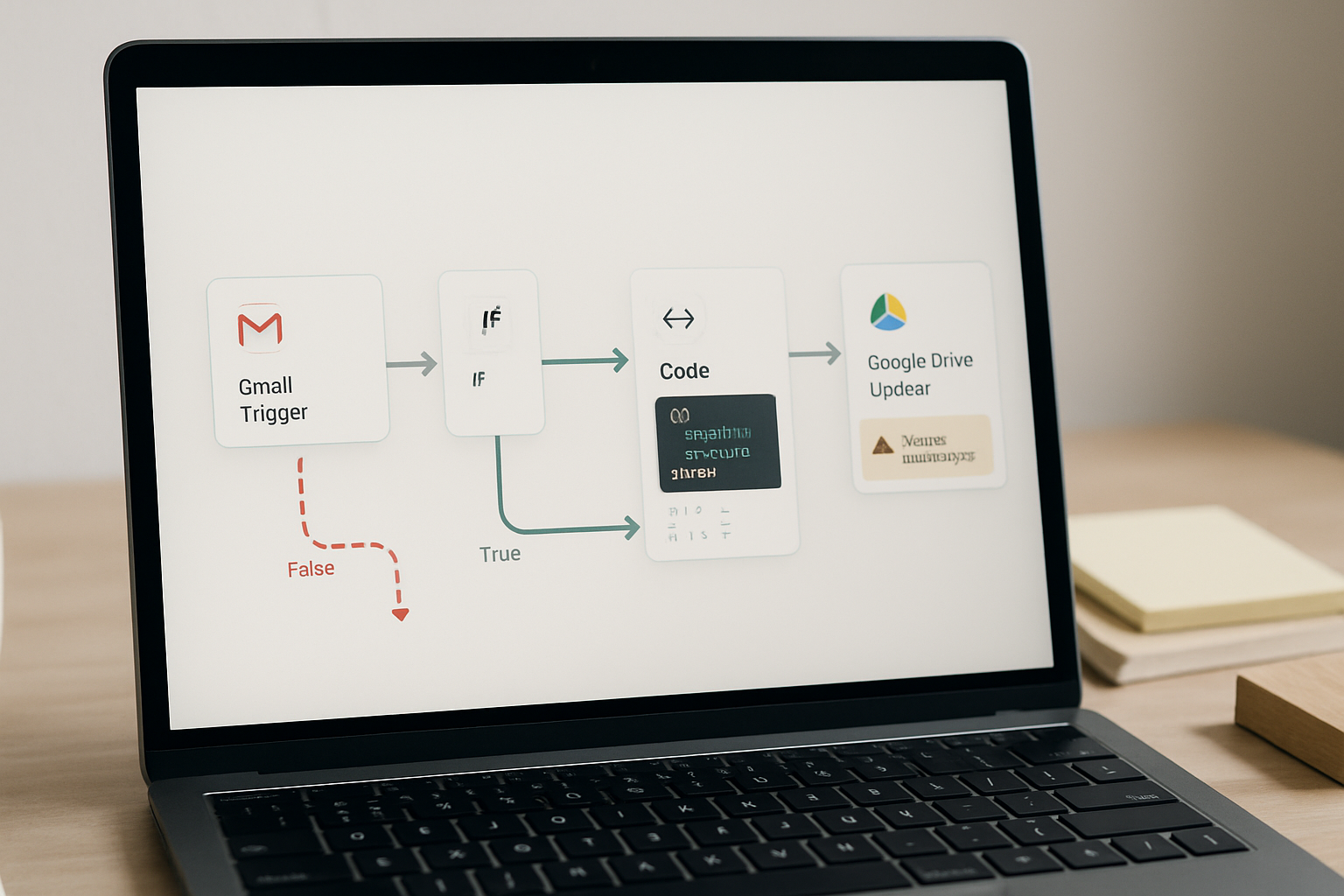
Where the Manual Process Actually Breaks
The assumption behind most file-management fixes is that people are saving files wrong — bad naming, inconsistent folder structures, no conventions. So the proposed fix is always a better convention. A shared doc. A Notion template. A folder tree everyone agrees on.
Conventions do not survive friction. When someone receives a client attachment at 4pm on a Friday, the file goes to Downloads. When they remember to move it, it goes to whichever folder is open. The naming follows whatever the original sender called it. For a team doing this repeatedly across a week, that accumulates into a recovery task — not a minor inconvenience, but roughly four hours weekly of locating, renaming, re-uploading, and apologizing for sending the wrong version.
The fix is not a better convention. It is removing the human step entirely. If the trigger is an email attachment, the flow should detect it, extract it, name it by date and client, and drop it into the correct subfolder — without anyone opening a browser tab.
The Minimal Working Flow
This is the structure that works. Not a feature-complete system — just the smallest version that does the job without breaking silently.
- A Gmail Trigger node watches a specific label or sender filter. When a new message matches, it fires and passes the full email payload downstream, including
attachments[]as a binary array. - An IF node checks whether
attachments.length > 0is true. If false, the flow exits cleanly. If true, it continues. This single gate prevents the Google Drive node from firing on plain-text emails and generating empty file errors. - A Code node constructs the file name and target folder path. The name pulls from
{{ $json.from }}and{{ $now.format('YYYY-MM-DD') }}to produce something like2026-05-14_ClientName_Invoice.pdf. The folder path is built from a static parent folder ID plus a dynamic subfolder name derived from the sender domain or a label tag. - The Google Drive node is set to Upload operation. The binary property field maps to the first attachment in the array. The folder ID field receives the output from the Code node. The file name field receives the constructed name string.
Four nodes. One conditional gate. No polling, no manual trigger, no human hand-off.
To locate the parent folder ID in Google Drive: open the folder in Drive → the URL ends in /folders/[folder_id] — copy everything after the last slash. Paste that into the Google Drive node’s Parents field under Additional Fields.
The Failure Case That Looks Like a Success
The most common failure in this flow does not throw an error. The file saves successfully — to the root of My Drive instead of the target subfolder. The workflow execution log shows green. The Google Drive node reports a file ID. Everything looks clean until someone opens Drive and finds the file sitting at the top level with no folder context.
This happens when the folder ID passed to the Google Drive node is either undefined or an empty string. The node defaults to root when the parents field is empty, and it does not surface a warning. The Code node output looks correct in the expression editor but evaluates to null at runtime when the sender domain extraction fails on an unexpected email format — for example, a reply-chain address like clientname+reply@domain.com that does not split cleanly on @.
@ and assumed index [1] was always the domain. On reply-chain addresses, the split produced three segments. Index [1] returned domain.com+reply — a string that matched no folder in the lookup table. The folder ID returned undefined. The file landed in root.
/[^@]+$/ to extract only the final domain segment regardless of address format, then falls back to a default folder ID if the lookup returns undefined. Files now route correctly even on malformed sender strings, and the fallback folder makes misrouted files visible without breaking the flow.
Add a fallback folder ID to every path that constructs dynamic folder names. One hardcoded catch_all_folder_id variable in the Code node is enough — it keeps the flow green and makes errors findable rather than invisible.
Node Connection Logic That Matters
The order of connections in this flow is not decorative. The IF node must sit between the Gmail Trigger and the Code node — not between the Code node and the Google Drive node. If the conditional check happens after the Code node runs, the Code node will still execute on every trigger, including emails with no attachments. On those runs, the binary data field is empty, and the Google Drive node may fire with null input depending on how error handling is configured.
The Google Drive node’s binary property field must reference the exact key name from the Gmail Trigger output. By default, Gmail Trigger returns attachments as data inside the binary object, but the key name changes when multiple attachments are present — it becomes data_0, data_1, and so on. If the flow only maps data and the email has two attachments, only the first saves. The second silently drops.
To handle multiple attachments without rebuilding the entire flow, place a Split In Batches node between the IF node and the Code node. Configure it to iterate over the binary keys array. Each iteration passes one attachment through the Code and Google Drive nodes independently. This adds one node and eliminates the silent drop condition entirely.
The real cost of skipping this is not a single lost file — it is a pattern where the second attachment from every multi-file email disappears and nobody notices until a client asks for the document that was definitely sent.
What This Does Not Solve
This flow handles email attachments with known senders and predictable folder structures. It does not handle ambiguous routing — when the same client sends invoices, contracts, and onboarding docs to the same address and all three should land in different subfolders. That requires a classification step, either a keyword match in the subject line or a second IF node branching on attachment file type (.pdf vs .xlsx vs .docx).
It also does not handle Google Workspace shared drives without adjusting the Google Drive node’s Drive field from My Drive to the specific shared drive ID. The default setting silently ignores shared drives, and the file saves to the authenticated user’s personal root instead — same silent failure mode as the folder ID problem, different cause.
If the source is not Gmail — if attachments arrive via Slack, a form submission, or a webhook — the trigger node changes but the Code and Google Drive nodes stay identical. The IF node condition changes to check whichever binary field the new trigger produces. The rest of the flow is reusable.
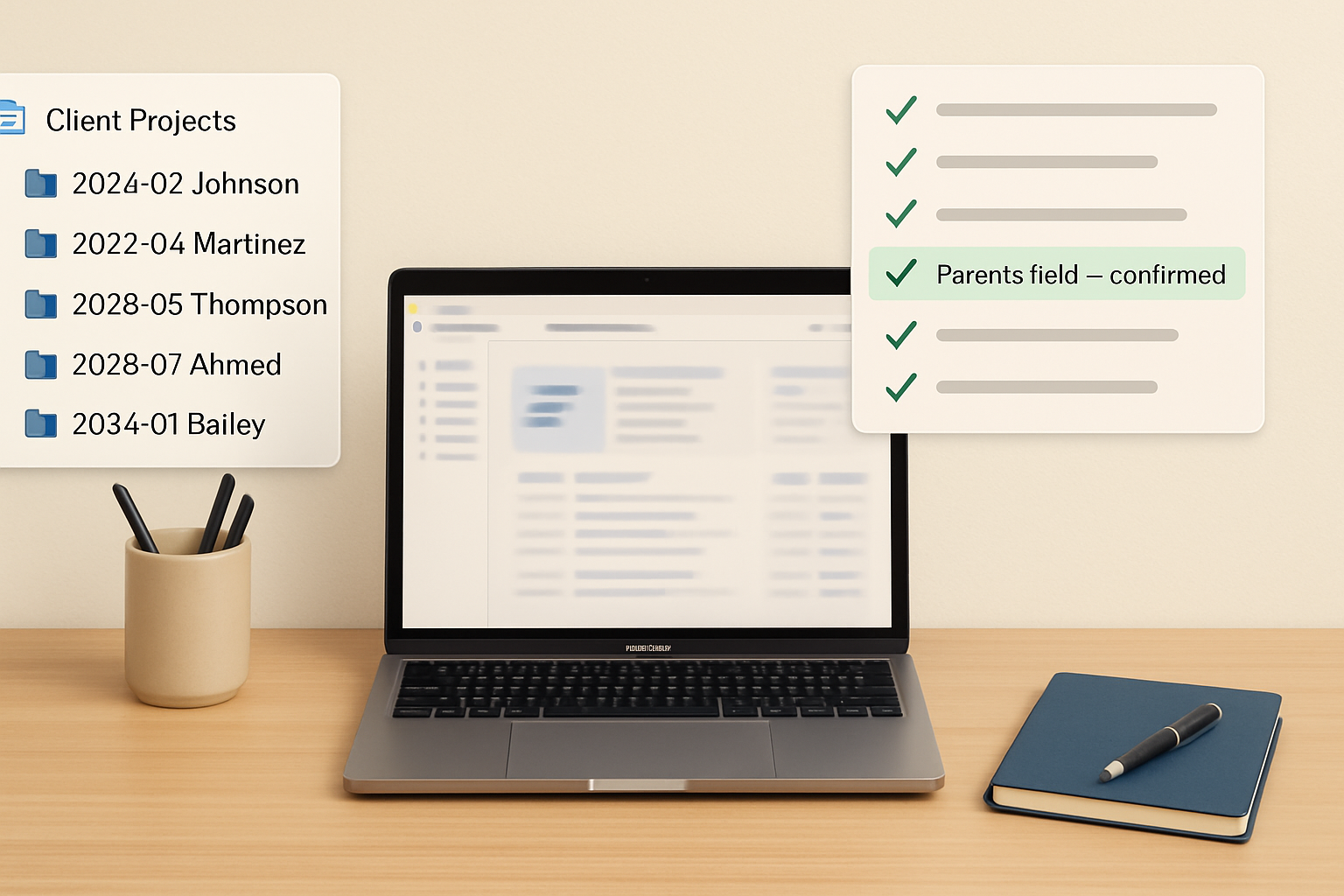
Execution Checklist Before Going Live
- Open the Gmail Trigger node and confirm the label filter or sender filter is set — leaving it blank will fire the trigger on every incoming email in the connected account, including newsletters and automated notifications.
- Run the flow once manually using Execute Node on the Gmail Trigger with a real test email that has one attachment. Open the output bubble and verify that
binary.dataorbinary.data_0is present and not empty before connecting downstream nodes. - In the Code node, log the constructed folder ID to the output using a temporary
return [{ json: { folder_id: targetFolderId } }]line and run the flow. Confirm the folder ID matches the expected Drive folder before wiring the Google Drive node. - In the Google Drive node, navigate to Additional Fields → Parents and confirm the expression references the Code node output, not a hardcoded placeholder. An empty Parents field will route to root without error.
- Send a test email with two attachments and verify both files appear in Drive under the correct folder. If only one saves, add the Split In Batches node and retest.
- Confirm the fallback folder ID variable in the Code node points to a real, accessible folder — not a deleted or permission-restricted one. Open the fallback folder in Drive and verify the authenticated service account has write access.
Automating this reduced a recurring weekly task — roughly four hours of manual downloading, renaming, and uploading — to zero active time. The flow runs on trigger, names by date and client, and routes to the correct subfolder. The only time anyone touches it is when a new sender domain needs a folder mapping added to the lookup table, which takes about thirty seconds.
If you want the exact Code node template for the sender-to-folder lookup and the fallback path, get the workflow breakdown from the list — it includes the regex pattern and the default folder variable already wired in.
The setup notes include the Code node logic, the Split In Batches configuration, and the fallback folder pattern. Join the list and get the file.
If the Google Drive node shows a successful execution but the file is in root, check the Parents field expression first — it is evaluating to undefined on that run, not failing.