
The scenario ran. The OpenAI module returned a red error bubble: 429 Too Many Requests. The batch was halfway through, and every iteration after the third had failed silently until Make.com finally stopped the execution entirely.
The first instinct was to check the OpenAI billing dashboard. The account had credits. The plan had capacity. Nothing looked wrong from the outside, which is exactly why this failure takes longer to diagnose than it should.
What the 429 Error Actually Signals in This Context
OpenAI rate limits operate on at least three separate axes: requests per minute (RPM), tokens per minute (TPM), and requests per day (RPD). A 429 response means one of those ceilings was crossed — but the error message rarely tells you which one. That ambiguity is where most debugging time disappears.
The assumption that a 429 means you need a higher plan tier is understandable but usually wrong when the scenario involves a loop. A higher tier raises the ceiling, but if the scenario is firing requests as fast as Make.com can iterate — which can mean several requests in under two seconds — even a Tier 3 account will hit its per-minute limit on models like gpt-4o during a batch of 20 or more records.
The chain failure looks like this: the iterator fires, the first few OpenAI calls succeed, latency drops slightly, the module starts firing requests in tighter succession, RPM ceiling is crossed around iteration four or five, every subsequent call returns 429, Make.com logs the error and either retries immediately (hitting the limit again) or halts the scenario. The root node was a timing problem, not a quota problem, but it expressed itself as a quota error — and that misdirection costs time.
To confirm which limit you’re hitting, go to platform.openai.com → Usage → Rate limits. The dashboard shows current RPM and TPM consumption against your tier limits. If RPM usage spikes to ceiling while TPM headroom remains, the fix is spacing — not upgrading.
The Troubleshooting Checklist: RPM vs TPM vs RPD
Before adding any retry logic, identify which boundary the scenario is actually hitting. These three conditions produce identical 429 responses but require different interventions.
- Open platform.openai.com → Usage → Rate limits and observe your tier’s RPM and TPM ceilings for the model you’re calling. For
gpt-4o, Tier 1 limits are significantly lower than Tier 2; confirm your account tier under Settings → Organization → Limits. - In Make.com, open the scenario execution log and check the timestamp delta between the first successful OpenAI call and the first 429. If failures begin within 10–20 seconds of the scenario starting, you are hitting RPM. If failures begin after a longer run and the error response contains a token-related message, you are hitting TPM.
- If the 429 appears only on the first execution of the day and clears after midnight UTC, you are hitting RPD. RPD limits are per-day resets and cannot be solved with spacing alone — they require batching across multiple days or upgrading the tier.
- Check the exact error message body inside Make.com’s error detail panel. OpenAI’s 429 response body typically includes a
messagefield that specifies “Rate limit reached for requests” (RPM) or “Rate limit reached for tokens” (TPM). These strings are different and diagnostic. - If the error body shows “You exceeded your current quota” rather than a rate limit message, that is a billing issue — no credits remaining or monthly budget cap reached — not a per-minute rate limit. Resolve this under platform.openai.com → Billing → Usage limits by setting the monthly budget field to match your credit balance.
Before the Fix: What the Broken Flow Looked Like
The downstream contamination — blank records silently written to the spreadsheet — was the part that made this failure expensive. The scenario looked like it ran. The real ROI of the fix is not just that the batch completes; it is that the output is no longer quietly wrong while appearing finished.
Adding the Sleep Module: Exact Settings
In Make.com, open the scenario canvas and locate the connection between your iterator (or trigger module) and the OpenAI module. Click the small + icon on that connection path to insert a new module. Search for Flow Control → Sleep.
Set the Delay field to 2 seconds for most standard use cases. This creates a minimum 2-second gap between each API call, which keeps a 30-iteration batch well within the 60-requests-per-minute ceiling for Tier 1 accounts (theoretical maximum: 30 requests over 60 seconds, or one every 2 seconds). For Tier 1 accounts on gpt-4o with a 500 RPM ceiling, 2 seconds is conservative but safe. For gpt-4 on Tier 1 with a 500 RPM ceiling, the same setting holds.
To calculate a tighter safe interval, use this formula: Safe interval (seconds) = 60 ÷ (RPM limit × 0.8). The 0.8 factor provides a 20% buffer below the ceiling. For a 500 RPM limit: 60 ÷ 400 = 0.15 seconds minimum. For a 60 RPM limit (common on lower tiers for certain models): 60 ÷ 48 = 1.25 seconds minimum. Round up to the nearest whole second for the Sleep module value.
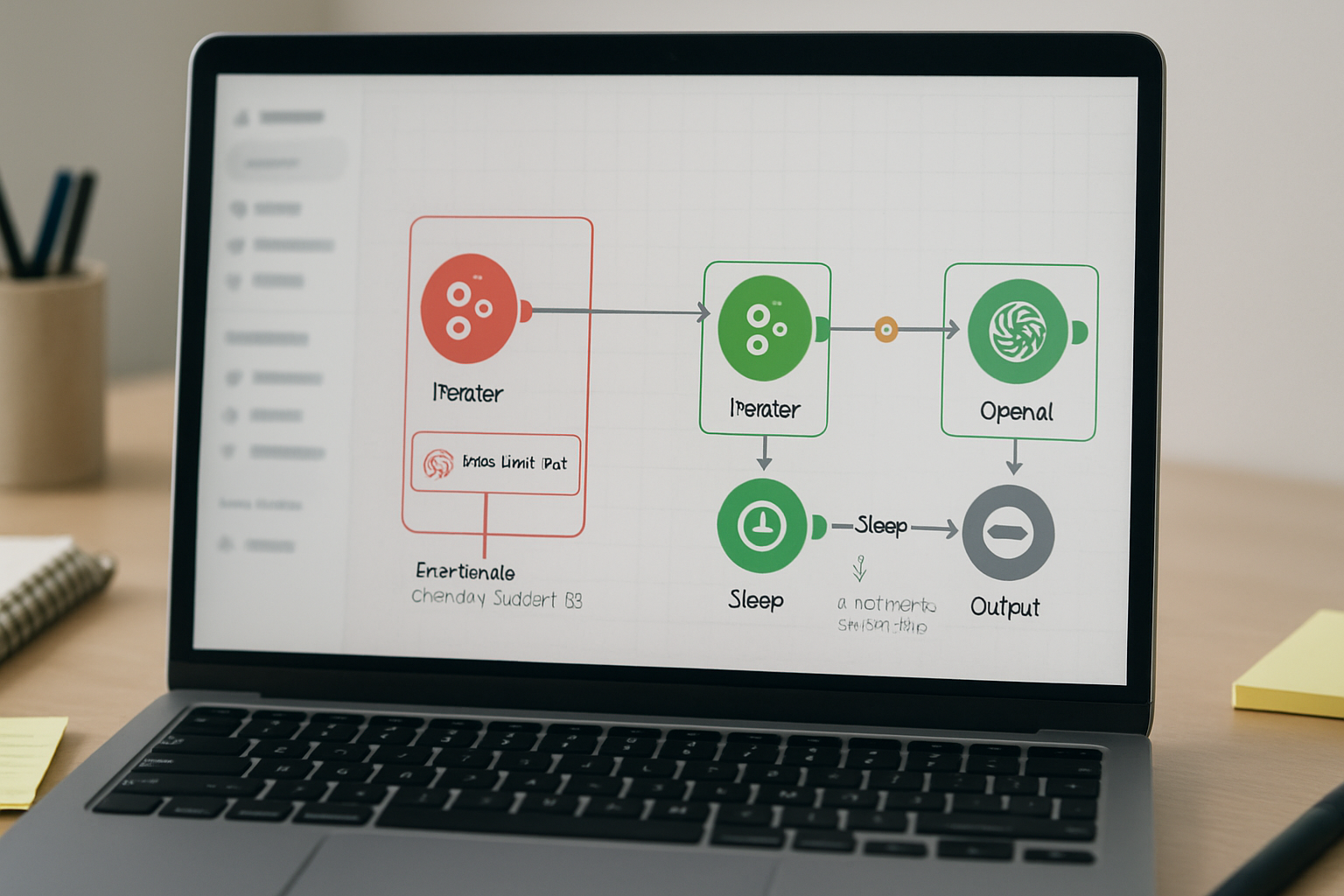
Verify the Sleep module is positioned correctly by checking the scenario canvas: the execution path should read Iterator → Sleep → OpenAI module → [downstream modules]. If the Sleep module is placed after the OpenAI module, it delays the next downstream step but does nothing to space the API calls.
Configuring the Error Handler With Exponential Backoff
Sleep modules reduce the probability of hitting RPM limits but do not eliminate it entirely — especially when other scenarios on the same OpenAI account are running concurrently. The error handler catches the cases that still slip through.
Right-click the OpenAI module in Make.com and select Add error handler. This creates a branch path that fires only when the module returns an error. In the error handler configuration panel, set the handler type to Resume or Retry depending on your Make.com plan — Retry is the cleaner option when available.
For exponential backoff without a native retry counter, the practical approach in Make.com is to use a Flow Control → Sleep module inside the error handler branch, followed by a Tools → Set Variable module to track retry count, and a Flow Control → Router that checks whether the retry count has exceeded your maximum (typically 3). Configure the Sleep inside the error handler with an increasing delay: use {{1 * (2 ^ iteration.index)}} seconds as the delay value if your Make.com plan supports dynamic expressions in the Sleep module, or hardcode the first retry to 5 seconds and the second to 15 seconds using a router branch per retry count.
The error handler branch should also filter by error code. Use a Filter condition on the error handler path: error.statusCode = 429. This ensures the retry logic only activates on rate limit errors, not on authentication failures (401) or model errors (500), which should surface immediately rather than being swallowed by a retry loop.
The screenshot configuration reference for this setup: in Make.com’s error handler panel, the path branches into two routes — one labeled 429 retry path with the filter condition error.statusCode equals 429, leading to Sleep → retry, and one labeled other errors with the filter condition error.statusCode does not equal 429, leading to a notification or logging module.
The Scenario JSON: Before and After Flow Structure
The before state and after state of the scenario structure can be described in terms of module sequence. The original flow had three modules in sequence with no spacing or error handling:
{
  "flow": [
    { "id": 1, "module": "iterator", "label": "Batch Input" },
    { "id": 2, "module": "openai:createChatCompletion", "label": "GPT Call" },
    { "id": 3, "module": "google-sheets:addRow", "label": "Write Output" }
  ],
  "errorHandling": "ignore"
}
The corrected flow inserts spacing and error handling at the right nodes:
{
  "flow": [
    { "id": 1, "module": "iterator", "label": "Batch Input" },
    { "id": 2, "module": "flow:sleep", "label": "Rate Limit Spacing", "delay": 2 },
    {
      "id": 3,
      "module": "openai:createChatCompletion",
      "label": "GPT Call",
      "errorHandler": {
        "filter": "error.statusCode == 429",
        "type": "retry",
        "maxRetries": 3,
        "backoff": [5, 15, 30]
      }
    },
    { "id": 4, "module": "google-sheets:addRow", "label": "Write Output" }
  ]
}
The structural change is small — two additions — but the failure mode it eliminates is the one that produces silent bad data at scale.
Where This Breaks
Adding a 2-second Sleep module to a 500-record batch means the scenario now takes roughly 16 minutes to complete rather than under a minute. For large batch jobs, this is a real operational tradeoff. If the batch size is in the thousands, spacing alone becomes impractical and the right answer shifts toward splitting the batch into separate scenario runs triggered across different time windows, or using Make.com’s Scheduling settings to run smaller chunks at defined intervals.
Exponential backoff also does not help when the 429 is caused by RPD exhaustion rather than RPM. If the daily request ceiling is reached at iteration 200 of a 500-record batch, the retry loop will keep waiting and retrying until the scenario timeout limit is hit, then fail entirely. RPD problems require a fundamentally different architecture: store the unprocessed records, and resume the next day via a scheduled trigger that reads from that queue. Sleep and retry logic cannot work around a 24-hour reset boundary.
Finally, concurrent scenarios sharing the same OpenAI API key will compete for the same rate limit envelope. Two scenarios each configured with a 2-second sleep can still collectively exceed RPM if they fire interleaved requests. The fix for concurrent scenarios is to stagger their start times under Scenario Settings → Scheduling or to route them through separate OpenAI API keys assigned to separate Make.com connections.
Execution Checklist Before Rerunning the Batch
- Confirm the Sleep module is positioned between the iterator and the OpenAI module — not after it — by tracing the canvas execution path from left to right and verifying the node order visually.
- Open platform.openai.com → Settings → Organization → Limits and record your exact RPM ceiling for the model being called, then apply the formula
60 ÷ (RPM × 0.8)to verify your Sleep delay is sufficient for your tier. - Right-click the OpenAI module and confirm an error handler branch exists; check that the filter condition reads
error.statusCodeequals429and is not left as a catch-all that would suppress legitimate error types. - Run the scenario against a test batch of 5–10 records with Make.com’s Run once mode enabled, then open the execution log and verify each iteration shows a timestamped gap of at least 2 seconds between OpenAI module completions.
- Check the downstream output module (spreadsheet, CRM, or webhook) after the test run and confirm no records contain empty or null values in fields that should have been populated by the OpenAI response — this is the signal that the error handler is working correctly and not silently passing empty data through.
- If running multiple scenarios against the same OpenAI key, open Make.com → Scenarios and stagger their scheduled start times by at least 30 seconds to avoid interleaved request collisions that the per-scenario Sleep module cannot prevent.
Before the fix, a batch of 30 records would complete in under 30 seconds and produce roughly 25 records of blank data with no visible alert. After the Sleep module and error handler were in place, the same batch took about 2 minutes and produced 30 valid records. The time cost is real. The alternative is a downstream cleanup pass that takes longer than the 90 seconds the delay added — and that cleanup pass happens invisibly, on someone’s time, every time the scenario runs.
If the 429 keeps appearing after the Sleep and retry logic are in place, the next check is whether another scenario on the same account is running concurrently — that is almost always the remaining cause once spacing is correctly configured.
Get the workflow breakdown
The exact Make.com module sequence, error handler configuration, and interval formula for common OpenAI tier limits — sent as a ready-to-import setup note. Join the list and get the template.
The sleep interval and the error handler filter do the same job from different directions: one prevents the ceiling from being hit, the other catches it when it is. Both need to be in place before the batch runs at scale.