
The workflow ran clean. The execution log showed no errors. Node 3 returned an empty output anyway — because the data extracted by node 2 was sitting in a scope that node 3 had no path to reach.
This is not a Dify bug. It is a handoff contract that most builders assume is automatic and then discover, mid-build, is entirely manual. Every variable that needs to cross a node boundary requires two explicit actions: the source node must declare it as an output, and the receiving node must reference it using the full path format. Miss either side and the variable does not travel. The workflow executes. Nothing breaks. The data just disappears.
What Actually Breaks and Where
A 4-node workflow where node 2 extracts structured user data — name, intent, input text — and node 3 is supposed to use that data to generate a response. The nodes are connected by arrows. The flow looks correct on the canvas. Node 3 still receives nothing.
The wrong diagnosis is usually a connection issue, a node ordering problem, or a model configuration error. None of those. The actual break point is that node 2 never declared its extracted fields as named output variables, and node 3 referenced them using short-form syntax like {{user_name}} instead of the required path format {{node_2.user_name}}.
Dify workflows do not auto-propagate variable state between nodes. Each node operates in its own execution context. Variables only cross that boundary when the source node explicitly maps them to named outputs, and the downstream node references them with the full {{node_name.variable_name}} path. Without both sides of that contract in place, the execution context for node 3 simply does not contain those fields — no error, no warning, just an empty reference.
This has been reported against Dify 1.6.0 (Docker self-hosted) where output variables from one node appear correct in isolation but are not found by the next node during sequential execution. The underlying cause in every confirmed case traces back to the same missing declaration pattern, not a platform defect.
The Configuration That Breaks vs. the Configuration That Works
Before the fix: node 2 runs an LLM extraction and the output lands in the node’s internal result object. Node 3 has its input field set to {{user_name}} — a short-form reference that works within a single node’s context but resolves to nothing when the variable originated in a different node’s execution scope. Node 3 fires. Output is blank or throws a variable-not-found error depending on how the field is wired.
{{user_name}} is not present in node 3’s execution record because node 2 never registered it as a named output — only as an internal result field.user_name, user_intent, raw_input — each mapped to the correct field from the extraction result. Node 3’s input configuration references them as {{node_2.user_name}}, {{node_2.user_intent}}, and {{node_2.raw_input}}. The execution log for node 3 shows all three variables present in its input context before it runs.The working version requires roughly two minutes of configuration that most builders skip because the canvas connection arrow implies the data is already flowing. It is not. The arrow is a sequencing instruction, not a data pipe.
Step-by-Step: Fixing the Output Declaration on the Source Node
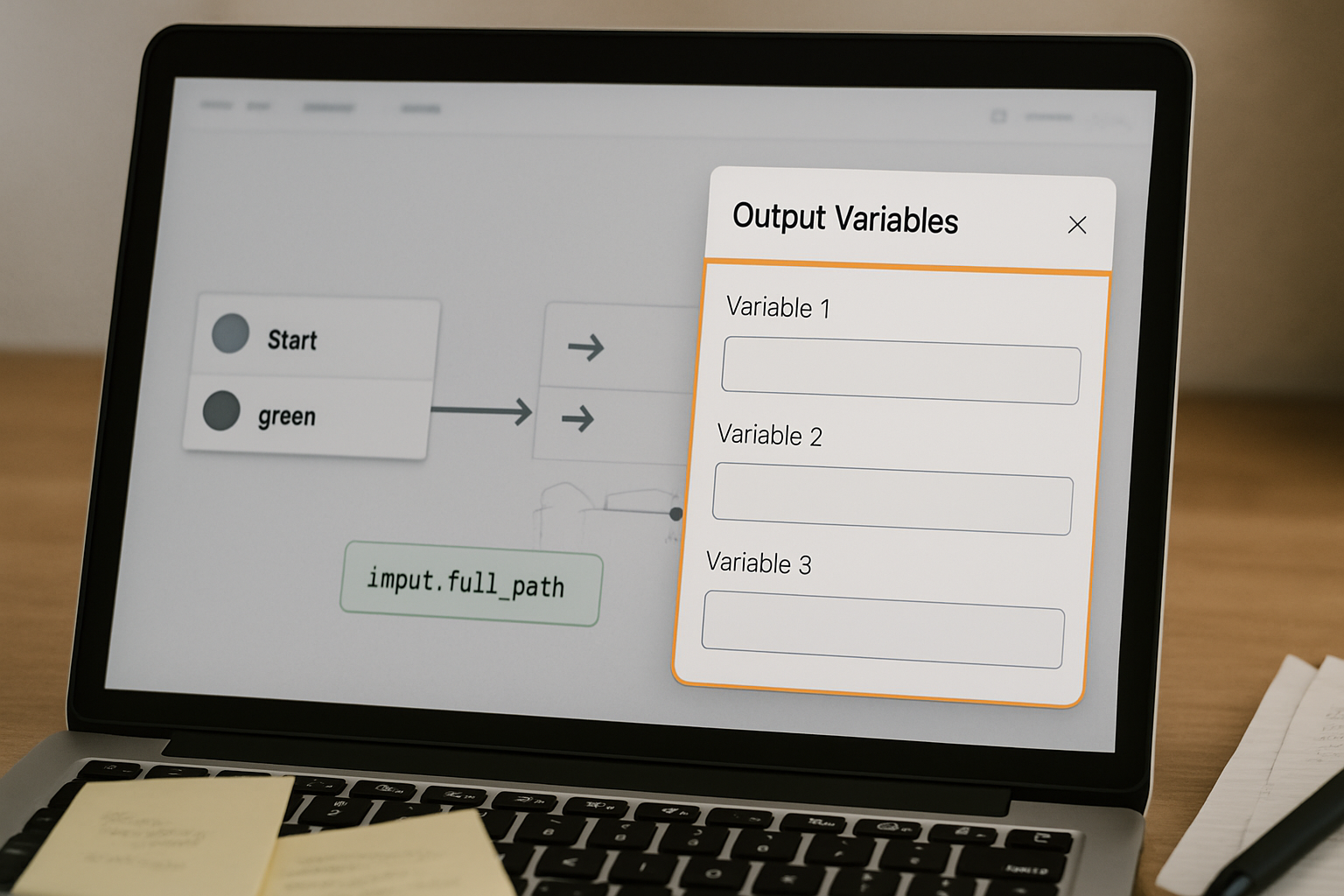
Open the settings panel for the node that generates the data you need downstream. In Dify’s workflow editor, this is accessed by clicking the node, then navigating to the Output Variables section within the node configuration panel — typically found under Node Settings → Output.
- In the source node’s output configuration, locate the Output Variables field. If it is empty or set to the default passthrough state, the node is not registering any named outputs. Click Add Variable and define each field you need downstream with a clear, lowercase name such as
user_name,extracted_intent, orparsed_date. Match the data type — String, Number, Object, or Array — to what the node actually produces. A type mismatch between source output and destination input causes the variable to fail silently at runtime even when the path syntax is correct. - Map each output variable to the specific field from the node’s result. For an LLM node, this is usually a JSON path into the model’s structured output. For a code execution node, it is the return value key from your script. For a tool node, it is the field name in the tool’s response schema. The variable name you register here becomes the second half of the path reference in downstream nodes.
- Save the node configuration and verify the output variables appear in the node’s output bubble on the canvas — in Dify’s editor, a small indicator shows declared outputs when you hover the node. If the bubble is empty, the output was not saved correctly.
Step-by-Step: Wiring the Reference in the Receiving Node
Open the destination node — in this case node 3. Navigate to its Input Variables or prompt configuration panel, depending on the node type. This is found under Node Settings → Input or directly inside the prompt editor for LLM nodes.
- Wherever you need the upstream data, replace any short-form reference like
{{user_name}}with the full path format:{{node_2.user_name}}, wherenode_2is the exact node ID or display name slug as it appears in Dify’s internal node registry. The safest approach is to use the variable picker inside the node editor — click the + or variable selector icon, navigate to the upstream node in the dropdown, and select the output variable directly. This inserts the correct path syntax automatically and avoids typos in node name references. - If the node is an LLM node with a system prompt, reference upstream variables directly in the prompt body using the full path. For example: “The user’s name is
{{node_2.user_name}}and their stated intent is{{node_2.user_intent}}.” Dify will resolve these references at runtime against the execution context passed into the node. - For custom code nodes that need to consume upstream variables programmatically, declare them in the node’s input variable binding panel first, then reference them inside the code block using the bound variable names. Do not attempt to access upstream node outputs directly inside code without first declaring them as inputs — the execution sandbox does not have access to the full workflow context, only to explicitly passed inputs.
For API-based or HTTP request nodes that need to forward variables to an external endpoint, the correct pattern is to bind the upstream output to a node-level input variable first, then reference that input in the request body configuration:
{
  "user_name": "{{inputs.user_name}}",
  "intent": "{{inputs.user_intent}}",
  "session_id": "{{sys.conversation_id}}"
}
The inputs prefix here refers to the node’s own declared input variables, not the upstream node path. This two-step binding — upstream output → node input declaration → node body reference — is the safe pattern for any node type that processes data rather than just passing it through.
Reading the Execution Log to Confirm the Handoff
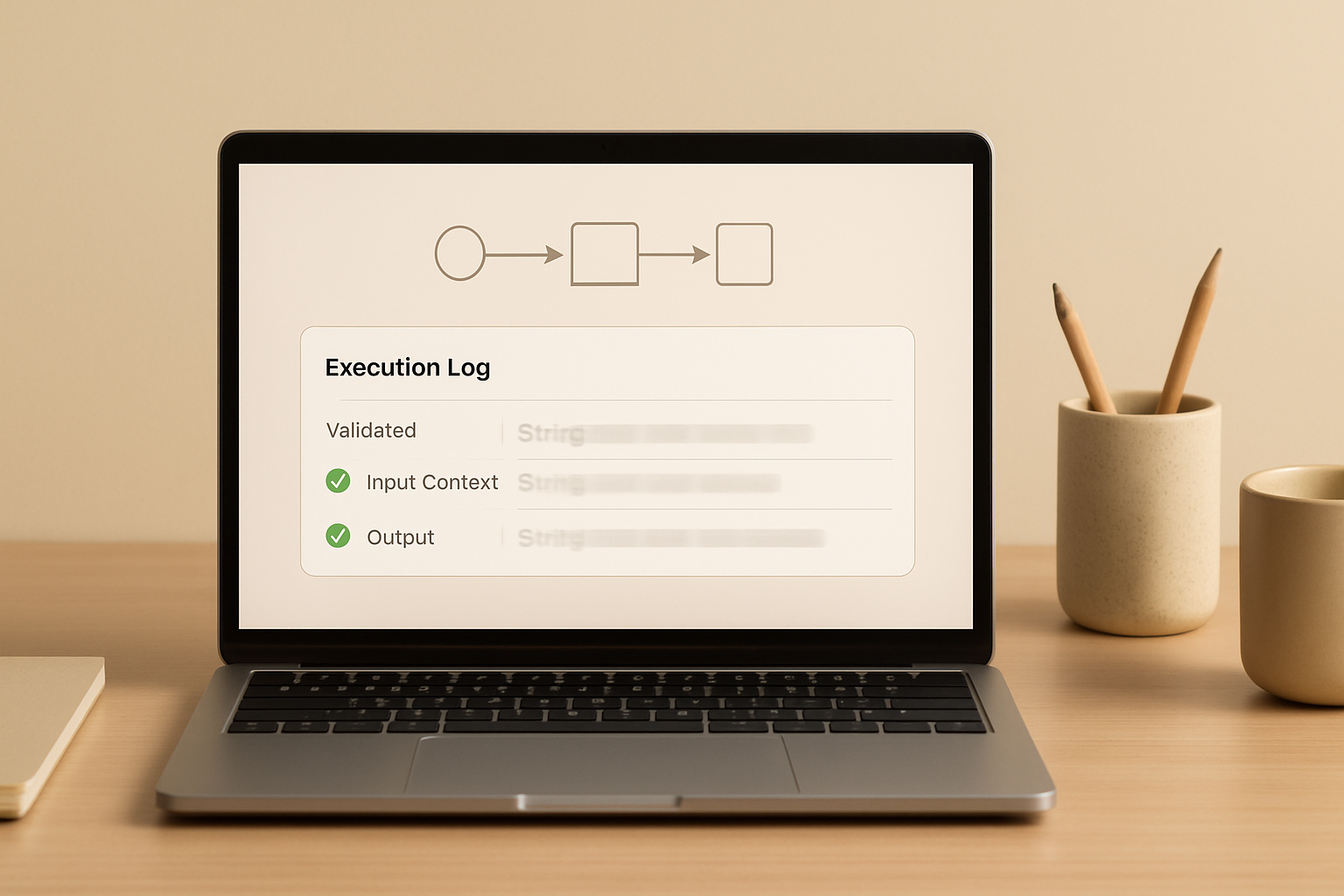
After wiring both sides, run the workflow with a test input and open the execution log. In Dify’s workflow editor, the log is accessible via Run → View Log or the execution history panel on the right side of the canvas.
For each node, the log shows the input context the node received before execution and the output context it produced after. If the fix worked, node 3’s input context will show the variable names and their resolved values — not empty strings, not null, and not undefined references. If the input context is still empty, the source node either did not save its output declaration correctly, or the node ID used in the path reference does not match the actual node identifier in the log. Node IDs in Dify can differ from display names, particularly when nodes have been renamed after initial creation. Cross-reference the node ID shown in the log against the path string used in the receiving node’s configuration.
A workflow that was producing empty outputs in node 3 on every run will, after this fix, show all three upstream variables populated in node 3’s log entry — typically within the same execution time since no additional processing is added, only correct context passing.
Variable Scope: What Persists and What Resets
One of the less obvious failure patterns in multi-step Dify workflows is using the wrong scope for the problem at hand. Dify supports three distinct variable persistence levels, and reaching for the wrong one creates either a state leak across sessions or a variable that vanishes after a single node.
Node-level variables exist only within a single node’s execution context. They are the internal result fields of a node — accessible inside that node, not accessible outside it unless explicitly exported via output variable declaration. Most variable loss issues happen here because builders treat these as workflow-level references.
Workflow-level variables — referenced via the {{node_name.variable_name}} path syntax — are scoped to a single workflow execution run. They reset completely at the start of each new run. This is the correct scope for data that needs to flow between nodes within one execution but should not carry over to the next.
Conversation-level variables are managed through the Variable Assigner node in chatflow applications. Unlike regular workflow variables, these persist throughout an entire conversation session. They are the right tool when you need to accumulate state across multiple turns — user preferences, prior answers, session identifiers. Misusing conversation variables in a single-run workflow creates state contamination where data from a previous session bleeds into the current one. The Variable Assigner node writes to these persistent slots explicitly; it does not auto-populate from workflow execution outputs.
For most multi-node data extraction and processing workflows, workflow-level variables with explicit output mapping are the correct choice. Conversation-level variables are only necessary when the workflow is a chatflow and the data must survive across message turns. Using the Variable Assigner node when you actually need workflow-level passing is a common over-engineering mistake that introduces persistence where none is needed.
Where This Breaks
The explicit output mapping approach handles the standard case cleanly. It does not handle everything.
When a workflow uses conditional branching — an IF/ELSE or switch node that routes execution down different paths — variables declared in one branch are not automatically available in nodes that execute after the branch merges. The Variable Aggregation node exists specifically for this case: it consolidates outputs from multiple branches into a single variable that downstream nodes can reference safely. Without it, a node after a merge point will silently receive null for any variable that was only declared in one branch and not the other.
Complex nested object outputs from LLM nodes also create problems. If the LLM returns a JSON object and you declare the entire object as a single output variable, downstream nodes receive the raw object string. Referencing a nested key like {{node_2.result.user_name}} may not resolve correctly depending on how the node type handles object traversal. The safer pattern is to flatten the extraction at the source — declare each field as its own named output rather than exporting the full object — and let downstream nodes work with scalar values.
Finally, this entire configuration approach assumes the workflow runs sequentially without timeouts or partial execution failures. In Docker self-hosted deployments, intermittent cases have been reported where output variables are declared correctly but still not found by the next node. In those cases, the execution context is being cut before the output variables are written — typically a resource or timing issue at the infrastructure level, not a configuration error. Restarting the container resolves it; the configuration itself is not the problem.
The Execution Checklist
- Open the source node’s settings panel via Node Settings → Output Variables and confirm at least one named output variable is declared with a matching data type for each field you need downstream. An empty output panel means nothing will cross the node boundary regardless of canvas connections.
- Verify the output variable names use lowercase with underscores and no spaces — Dify’s variable resolver is case-sensitive and will not match
UserNamewhen the path referencesuser_name. - In the receiving node, use the variable picker (+ icon inside the input or prompt configuration field) to insert upstream variable references rather than typing them manually. The picker inserts the correct
{{node_id.variable_name}}path and prevents node ID mismatch errors. - For any node that processes variables inside a code block or HTTP request body, declare the upstream output as a node-level input variable first under Node Settings → Input Variables, then reference it inside the code or request using the
{{inputs.variable_name}}format. - Run the workflow with a short test input, open Run → View Log, and inspect the input context entry for each downstream node. Confirm that the variable names appear with resolved values — not empty strings and not undefined — before treating the configuration as complete.
- If a conditional branch is involved, add a Variable Aggregation node after the branch merge point and wire all branch outputs through it before any downstream node attempts to reference them. Skip this step and downstream nodes will receive null on every execution path that did not declare the variable.
- If the workflow is a chatflow and data needs to persist across conversation turns, use the Variable Assigner node to write to conversation-level variables explicitly. Do not assume that workflow-level output variables from one turn are available in the next.
The real ROI of getting this right is not faster workflows — it is that the same silent failure no longer requires someone to manually re-run, inspect, and patch executions that look successful until a downstream output is checked.
Get the workflow setup notes
If you are building multi-node Dify workflows and want the full variable mapping reference — including branch merge patterns and conversation variable configuration — join the list and get the setup notes directly.
Check the execution log input context for node 3 before assuming any other part of the configuration is wrong. If the variables are not listed there, the source node output declaration is the only place the fix needs to happen.