
The Zap shows On. The trigger app is connected. The last run timestamp is from three days ago, and nobody noticed until a client asked why their onboarding sequence went quiet. The webhook endpoint is still technically registered — it just stopped receiving anything after the app was reconnected with updated permissions.
This is the failure mode that doesn’t show an error. Zapier’s dashboard stays green. The connection looks valid. But somewhere between the account-level reconnection and the live webhook subscription, the data path broke and nothing announced it.
What Actually Breaks When You Reconnect an App
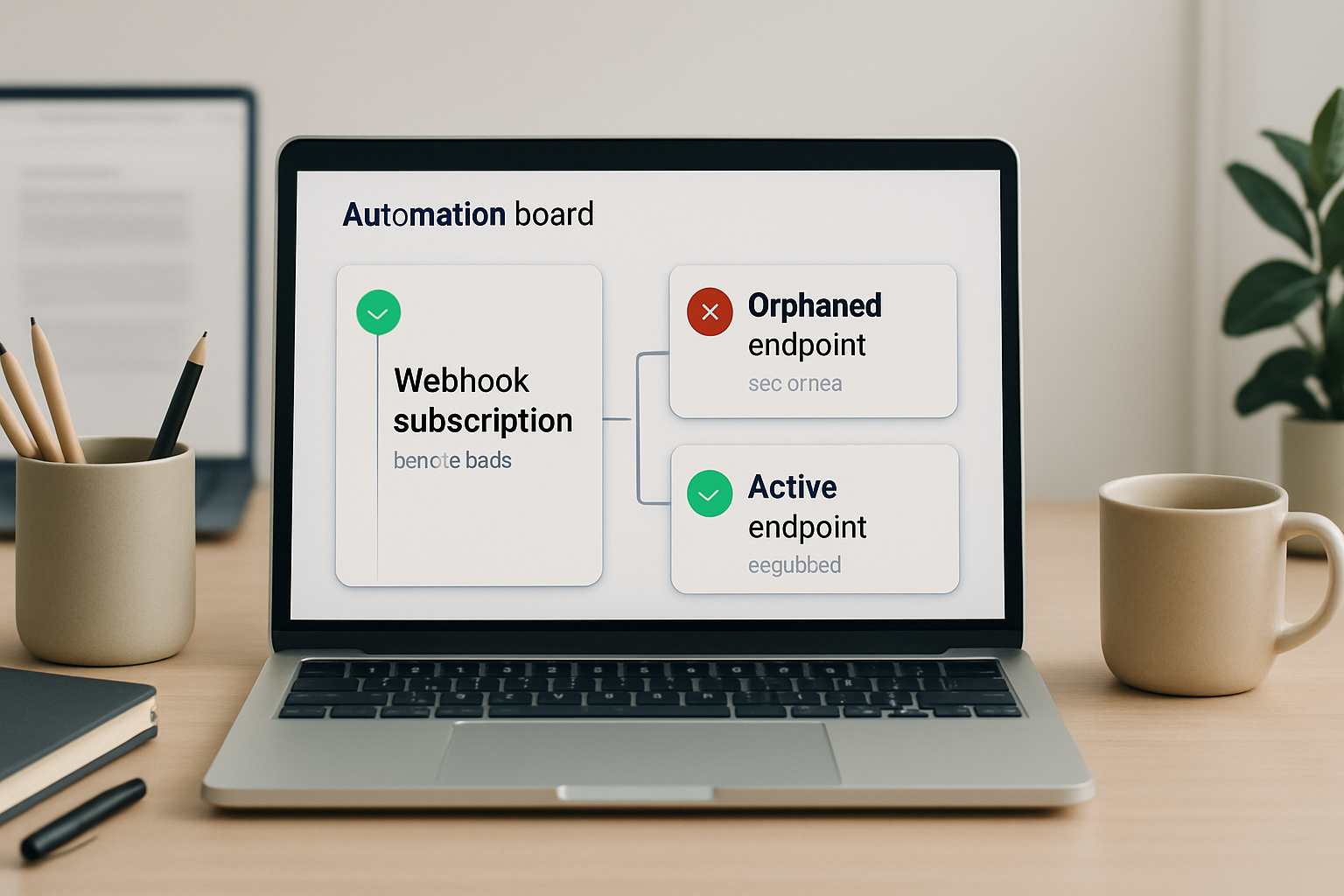
When you reconnect an app in Zapier — especially after a permission scope change or OAuth re-authorization — the platform generates a new authentication token. That token replaces the old one at the account level. What it does not do is automatically re-register every webhook subscription that was using the previous token.
The webhook endpoint your trigger step registered during initial setup was bound to the original auth token. After reconnection, that endpoint becomes orphaned: the app still has a record of it, but the authentication it was tied to no longer matches. New events fire against the new token, the old webhook subscription doesn’t receive them, and Zapier sees no delivery failure because it isn’t watching a dead endpoint — it simply never gets called.
The status reads On because the Zap itself is on. The trigger step doesn’t poll for webhook health. It waits. And it keeps waiting.
To verify this is actually happening: navigate to Zap History → Filter by Status: Skipped or Errored and check whether runs stopped correlating with the date of the reconnection. If there’s a clean gap starting the day the app was reconnected, the orphaned webhook is almost certainly the cause.
The Wrong Fix (and Why It Doesn’t Work)
The instinct is to go to Settings → Connected Accounts, find the app, and hit Reconnect there. That reconnects the account credential. It does not touch the webhook subscription inside the trigger step. This is where most debugging time gets lost — the account shows as connected, the test passes, and the webhook still doesn’t fire on live events.
Running Test Trigger inside the Zap editor also doesn’t fix it. Test Trigger pulls a sample of recent data for mapping purposes. It does not re-register the webhook endpoint. The test succeeds, the workflow looks fine, and the next real event still goes nowhere.
The Exact Reconnection Sequence
This is the sequence that actually re-registers the webhook subscription. Order matters — skipping the toggle step at the end leaves the new registration in a pending state on some app integrations.
- Open the Zap editor and navigate to the trigger step. Do not go to Settings → Connected Accounts. The fix happens inside the Zap, not at the account level.
- Toggle the Zap to Off before making any changes. Some webhook subscriptions don’t update cleanly while the Zap is live.
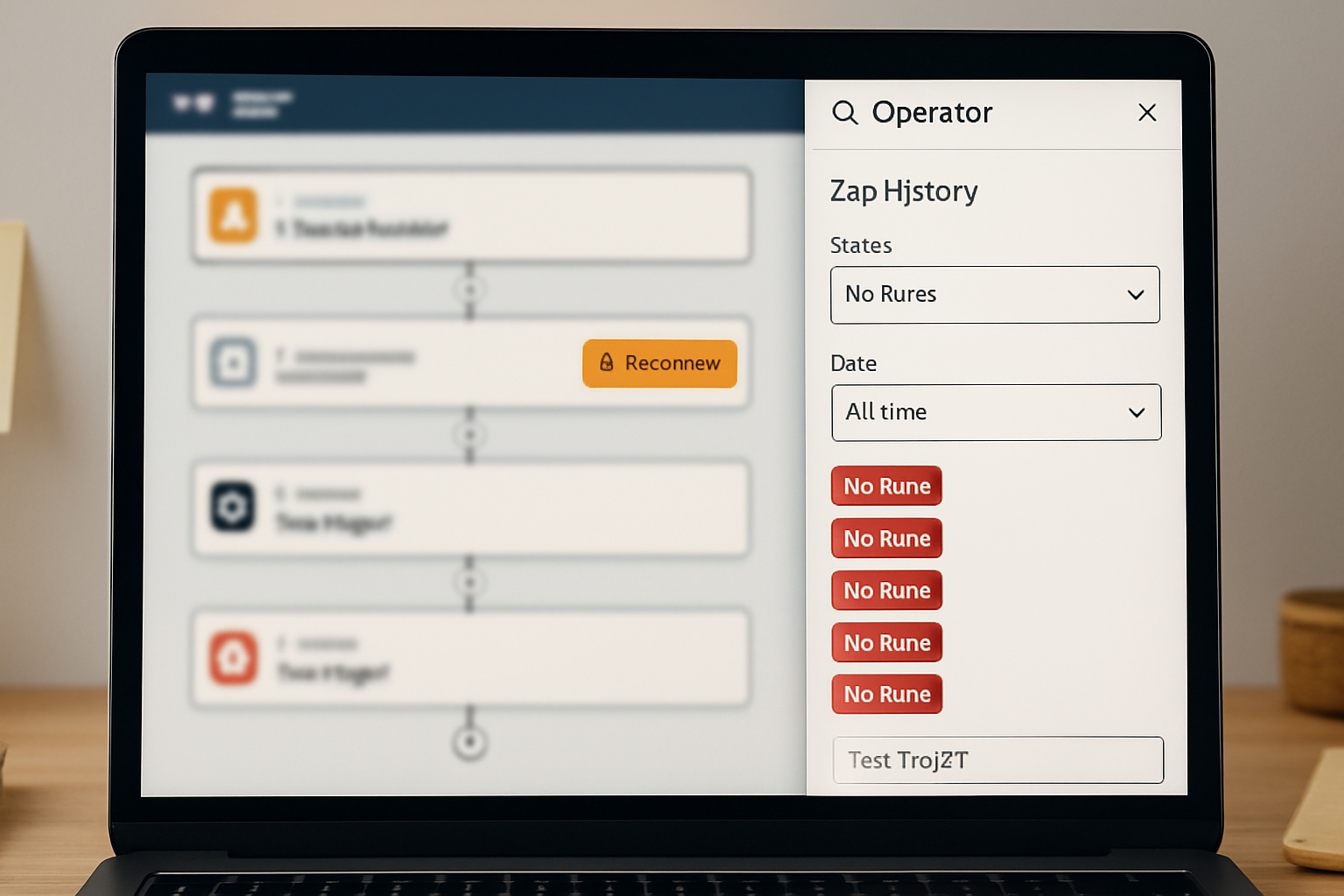
- Inside the trigger step, locate the account selector — the field showing which connected account is being used. Click the dropdown and look for the Reconnect option specific to this step. This button is positioned directly beneath the account name in the trigger configuration panel, and it is visually distinct from the Test trigger button, which appears lower in the same panel after the account and event fields are set. The Reconnect option re-authorizes the trigger step’s connection and forces a new webhook subscription registration against the current auth token.
- After clicking Reconnect and completing any OAuth confirmation prompts, click Continue through the trigger setup until the step shows as configured.
- Toggle the Zap back to On. This final toggle is what commits the new webhook endpoint registration with the app. Without it, the subscription may not activate.
- Trigger a real test event from the source app — not the Test Trigger button inside Zapier, but an actual event in the connected application. Confirm it appears in Zap History within the expected delivery window.
The real ROI of catching this early is not that one workflow gets fixed — it is that every downstream action tied to that trigger (CRM updates, email sequences, Slack notifications) stops silently failing without anyone filing a support ticket.
How to Check Webhook Delivery Logs
Zapier’s delivery log for a specific Zap lives at Zap History → select the Zap → filter by date range. The default view shows all statuses. To isolate the failure window, use the status filter and select Errored and Held together. Skipped runs occasionally appear here when Zapier received a webhook payload but the filter conditions prevented the Zap from continuing — that’s different from no payload arriving at all.
If the history shows zero runs during the gap period — not errored, not skipped, just absent — the webhook subscription was not receiving payloads. That confirms the orphaned endpoint scenario rather than a filter or action-step failure.
For apps that support native webhook logs (Slack, for example, logs event delivery under App Management → Event Subscriptions → Recent Deliveries), cross-referencing the source app’s delivery log against Zapier’s history will show whether the payload was sent but not received by Zapier, or never sent at all. If the source app shows successful delivery attempts during the gap, the webhook URL registered in that app is pointing to the old, orphaned Zapier endpoint.
When the Trigger Step Needs to Be Rebuilt Entirely
Reconnecting the trigger step works when the app integration and API version are unchanged. There are conditions where reconnection alone is not enough and the trigger step needs to be replaced.
If the connected app updated its API to a newer version and the Zapier integration hasn’t been updated to match, the reconnected webhook may register successfully but send payloads in a schema that the downstream action steps no longer parse correctly. This shows up as runs completing with empty mapped fields — the Zap fires, the action step executes, but field values arrive as blank or null. Navigate to Zap History → select a recent run → expand the trigger output and check whether the field values are populated. Empty trigger output on a successful run means the payload schema changed.
The table below captures the decision point in plain terms:
Reconnect the trigger step when: the app was reconnected or re-authorized, the Zap shows On but receives no live events, Test Trigger returns valid sample data, and the API version has not changed. This handles the orphaned webhook subscription without losing field mappings.
Rebuild the trigger step when: the trigger output shows empty or null field values on successful runs, the app integration has been updated to a new API version, the trigger event type was renamed or deprecated, or the reconnection flow throws an authorization error that persists after multiple attempts. Rebuilding re-establishes the trigger against the current API schema and clears any stale field mapping references.
Authentication Scope Changes and What They Break
Permission scope changes are the most common reason an app reconnection is needed in the first place, and they introduce a second failure layer beyond the orphaned webhook. When an app’s OAuth scope is expanded or restricted — for instance, a Slack app that previously requested channels:read now requires channels:history — the reconnection grants the new scope, but any trigger step that was originally configured under the old scope may not inherit the expanded permissions automatically.
To verify the active scope on a reconnected trigger: go to Settings → Connected Accounts → [App Name] → View Permissions. The permissions listed there reflect what was granted during the most recent authorization. If a required scope is absent, the trigger will reconnect successfully but silently fail to receive certain event types — particularly events that require the new permission to deliver payload data.
After any scope-related reconnection, run through the trigger setup once more and confirm the event type selected in the trigger step is still available under the current permission set. Some event types disappear from the dropdown when the connected account lacks the required scope, which is a visible signal that the authorization is incomplete.
Where This Doesn’t Help
This reconnection sequence resolves orphaned webhook subscriptions caused by app re-authorization. It does not cover every webhook failure mode in Zapier.
If the source app is sending payloads to a Zapier Catch Hook (a custom webhook URL rather than a native app integration), the reconnection flow described here doesn’t apply. Catch Hook URLs are static and persist through account changes — but they can stop receiving data if the source application’s outbound webhook was reconfigured to point to a different URL, or if the Catch Hook Zap was duplicated and the source app was never updated to point to the new URL. Check the Catch Hook URL in the trigger step under Zapier Webhooks → Your Unique Webhook URL and confirm it matches exactly what the source app has on record.
This also doesn’t resolve failures caused by Zapier plan limits. If a Zap is on a free or starter plan and has exceeded its monthly task count, incoming webhooks are held rather than processed. Held runs appear in Zap History with a Held status tag — that’s a billing state, not a webhook registration problem, and reconnecting the trigger step has no effect on it.
Finally, some apps enforce a maximum number of active webhook subscriptions per account. If the reconnection creates a new subscription without deregistering the old one, and the account is at the subscription limit, new events may be silently dropped at the source before reaching Zapier at all. Check the source app’s webhook management settings after reconnecting to confirm the old endpoint was removed.
Post-Reconnection Verification Checklist
- Confirm the Zap was toggled Off before beginning the trigger step reconnection, and toggled back On only after the reconnection flow completed without errors.
- Open Zap History and filter by the last 24 hours after re-enabling the Zap. Confirm at least one live run appears — not a test run, a real event from the source application.
- Expand the trigger output on that live run and verify that all expected field values are populated, not blank or null. Empty fields on a successful run signal a schema mismatch that reconnection alone won’t fix.
- Navigate to Settings → Connected Accounts → [App Name] → View Permissions and confirm the current scope includes every permission required by the trigger event type you’re using.
- If the source app maintains its own webhook delivery log (Slack under App Management → Event Subscriptions, for example), cross-check delivery timestamps against Zapier’s Zap History to confirm payloads are arriving at the correct endpoint.
- Check the source app’s webhook subscription list and confirm the old orphaned endpoint was deregistered. If two active subscriptions exist pointing to different Zapier URLs, delete the older one to avoid duplicate event delivery or subscription limit issues.
- If any downstream action steps use field references from the trigger output, open each action step and confirm the mapped fields still resolve correctly under the updated schema. Field references that return empty on the first live run after reconnection indicate stale mappings that need to be remapped manually.
FAQ
The Zap shows On and the connection test passes, but no live events are coming through. Is this definitely the orphaned webhook issue?
It’s the most common cause when the failure starts immediately after an app reconnection, but confirm it by checking Zap History for a clean gap in runs starting from the reconnection date. If runs were arriving before the reconnection and stopped after, with no errors logged, the orphaned subscription is almost certainly responsible. If runs stopped for a different reason — task limit, held status, filter conditions — those will show up in the history with their own status tags.
Can I just delete the Zap and rebuild it from scratch instead of reconnecting the trigger step?
Rebuilding works, but it’s slower and you lose the Zap’s run history. The reconnection sequence described here takes under two minutes and preserves history and field mappings for apps where the API schema hasn’t changed. Rebuild only when the trigger output is returning empty fields after reconnection, which indicates a schema change that reconnection alone can’t fix.
Does this happen every time I reconnect an app in Zapier?
Not always. Some app integrations handle token refresh gracefully and re-register the webhook subscription automatically. The failure is more likely when the reconnection involves a scope change, when the app uses OAuth 2.0 with short-lived tokens, or when the reconnection was triggered by a permission expansion rather than a simple token refresh. The safest practice after any app reconnection is to verify Zap History for live runs within the first hour rather than assuming the subscription carried over.
Why does Test Trigger return data even when the live webhook isn’t firing?
Test Trigger pulls from a recent event cache, not from the live webhook subscription. It’s designed to give you sample data for field mapping, not to verify that the webhook endpoint is actively receiving new events. A successful test does not confirm the subscription is healthy — only a confirmed live run in Zap History does.
What if reconnecting the trigger step throws an authorization error?
First, go to Settings → Connected Accounts, disconnect the app entirely, and reconnect it fresh — granting all requested permissions during the OAuth flow without skipping any scope prompts. Then return to the trigger step and attempt the step-level reconnection again. If the error persists, the app’s OAuth configuration may have changed in a way that requires deleting the connected account entry and re-authorizing from a clean state.
Get the webhook troubleshooting notes
If you’re managing more than a handful of Zaps across client accounts, the reconnection failure described here will happen again — usually at the worst time. Join the list and get the field notes on webhook failure patterns, trigger health checks, and the Zapier edge cases that don’t surface in official docs.
If the gap in Zap History lines up with the date of the app reconnection, skip the account-level reconnection screen entirely and go straight to the trigger step inside the Zap editor. That’s where the subscription lives, and that’s the only place the fix actually takes effect.