
The terminal opened. The command typed. Nothing ran — no error, no output, just silence where execution should have been. Running the same command in a different directory worked instantly. The project folder itself looked fine. The shell looked fine. Nothing in the UI flagged a problem.
That gap between “works everywhere else” and “fails here” is exactly where most troubleshooting goes sideways, because the first instinct is to blame the wrong layer entirely.
The Wrong Diagnosis That Costs the Most Time
When terminal commands fail inside a specific Cursor project, the natural assumption is that something broke at the installation level — corrupted shell integration, a bad Cursor update, a path conflict in the terminal config. Community threads are full of this pattern: reinstall Cursor, reset the config, wipe the terminal profile, start over.
None of that is wrong to check. But it skips the most likely cause entirely, which is not a broken installation. It is a workspace trust boundary that Cursor enforces at the project folder level, silently, without surfacing a prominent error message during command execution.
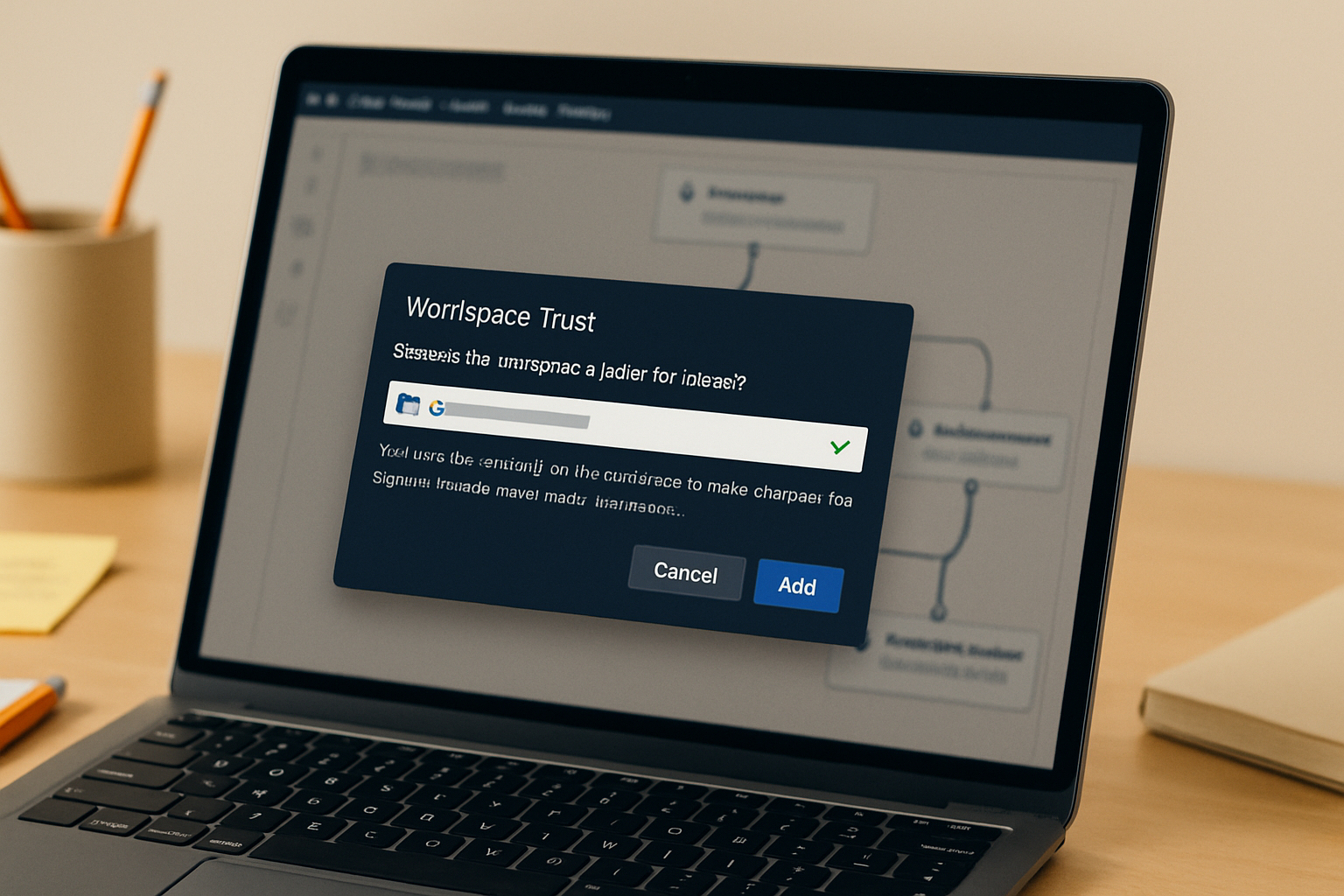
Cursor inherits the VS Code workspace trust model. When a folder is opened that has not been explicitly granted trust, Cursor restricts what that workspace can execute — including shell commands from the integrated terminal in certain configurations. The restriction does not always produce a visible error. Sometimes the terminal opens, accepts input, and returns nothing. The command appears to fire. The shell stays empty.
Before touching shell paths, terminal profiles, or environment variables, check workspace trust status. That single check resolves the issue in a significant share of cases where commands fail in one project but not another.
How to Check and Fix Workspace Trust in Cursor
Open the project where commands are failing. Navigate to File → Preferences → Settings (or use Ctrl+, / Cmd+,), then search for workspace trust in the settings search bar. Cursor surfaces the trust configuration under Security → Workspace Trust.
If the current project folder is not listed as trusted, Cursor is running it in restricted mode. The fix is to add the project path explicitly: select Manage Workspace Trust, then add the folder to the trusted workspaces list. Alternatively, when Cursor opens a folder it does not recognize, it may prompt a trust dialog at the top of the window — accepting that prompt is sufficient, but it is easy to dismiss without noticing it.
After adding the folder to trusted workspaces, close the integrated terminal panel and reopen it using Terminal → New Terminal or the Ctrl+` shortcut. Do not just clear the existing terminal session — the trust state change requires a fresh terminal instance to take effect. Run the previously failing command. In the pattern described above, this single change restored normal execution without any other modification.
The settings path in full: File → Preferences → Settings → search “workspace trust” → Security: Workspace Trust → Manage Trusted Folders & Workspaces → Add Folder.
When Trust Is Set Correctly and Commands Still Fail
Workspace trust resolves the most common case. But there are secondary failure modes that show up once trust is confirmed — and they behave differently enough to diagnose separately.
Shell path misconfiguration is the next most frequent cause. Cursor uses the shell defined under Terminal → Integrated → Default Profile for the current operating system. On macOS this defaults to zsh; on Windows it defaults to PowerShell. If the project requires a specific shell — bash, Git Bash on Windows, or a custom shell with direnv hooks — and the default profile points elsewhere, commands either fail silently or execute in the wrong environment context. The fix is to open File → Preferences → Settings → search “terminal default profile” and confirm the shell matches what the project expects. On Windows, switching the default profile to Git Bash and running direnv allow . from the project root resolves a known class of shell command hangs involving .envrc files.
Environment variable inheritance is a subtler failure. When Cursor is launched from a desktop shortcut or application launcher rather than from the terminal, it does not inherit the shell’s login environment. Variables set in .zshrc, .bashrc, or .bash_profile may be absent from the integrated terminal session. Commands that depend on those variables — build tools, version managers like nvm or pyenv, custom PATH entries — fail with confusing output or no output at all. Launching Cursor from the terminal directly using cursor . from the project directory forces environment inheritance and eliminates this class of failure.
Heavy shell prompt frameworks introduce a third failure mode. Configurations using Powerlevel10k with Oh-My-Zsh are a documented source of Cursor agent terminal hangs — the shell initialization sequence takes long enough or produces enough output that Cursor’s terminal integration loses synchronization with the session. Switching the integrated terminal profile to a plain zsh or bash instance (without the prompt framework) while keeping the framework active in external terminal windows is the standard workaround.
Before and After: What the Failure Actually Looks Like
npm run dev or git status is entered, and the terminal returns immediately to the prompt with no output and no error. Running the same command from an external terminal in the same directory executes normally. The Cursor terminal shows no permission error, no trust warning, no log entry — just an empty response.
The before state is what makes this failure expensive — it produces no signal that points toward the actual cause. Without visible output, the natural next move is to assume something structural is broken, which sends troubleshooting in the wrong direction for as long as that assumption holds.
Verifying the Terminal Configuration in Cursor Preferences
Once workspace trust is confirmed, a quick settings audit catches the remaining common misconfigurations before they become the next failure. Work through these in order:
- Open File → Preferences → Settings and search “terminal integrated shell” to confirm the shell executable path is valid and points to an installed shell binary, not a stale or relocated path from a previous system configuration.
- Search “terminal integrated env” to check whether any environment variable overrides have been set at the workspace level that might be masking or conflicting with system-level variables — this setting is per-platform (Mac, Windows, Linux) and easy to overlook when a project was originally configured on a different machine.
- Open the terminal panel and run
echo $SHELL(macOS/Linux) or$env:ComSpec(Windows PowerShell) to confirm the active shell matches the expected shell for the project, not a fallback inherited from an older Cursor profile. - Check File → Preferences → Settings → search “terminal inherit env” — the
terminal.integrated.inheritEnvsetting controls whether the terminal session inherits the parent process environment. If this is disabled, variables set outside Cursor will not be visible inside the integrated terminal, which silently breaks any command that depends on them. - If the project uses
.envrcor direnv, open the integrated terminal at the project root and rundirenv allow .before running any project-specific commands. Cursor agents running bash in that workspace will pick up the direnv environment automatically after this step.
What This Does Not Solve
The workspace trust fix is specific to the failure pattern where commands fail inside one project but run normally elsewhere. It does not address Cursor agent terminal failures where the agent reports a command as successful but the command never actually executed — a separate bug documented in Cursor community reports where the agent’s state model loses sync with the real terminal session. That failure requires a different intervention: disabling and re-enabling the agent terminal, or in persistent cases, resetting the Cursor agent configuration after an update.
It also does not resolve failures caused by project-level .vscode/settings.json overrides that change the terminal shell or environment at the workspace level. If a project was cloned from a repository that includes workspace settings, those settings take precedence over user-level Cursor preferences. Check Explorer → .vscode → settings.json in the project for any terminal.integrated keys that might be overriding the working configuration.
And if Cursor itself was recently updated and reset its configuration — a known occurrence in certain version transitions — the trust list may have been wiped entirely, meaning projects that previously worked will fail until trust is re-granted. In that case, the fix is the same, but it applies to every project folder that was previously trusted, not just one.
The Chain That Breaks Without Trust
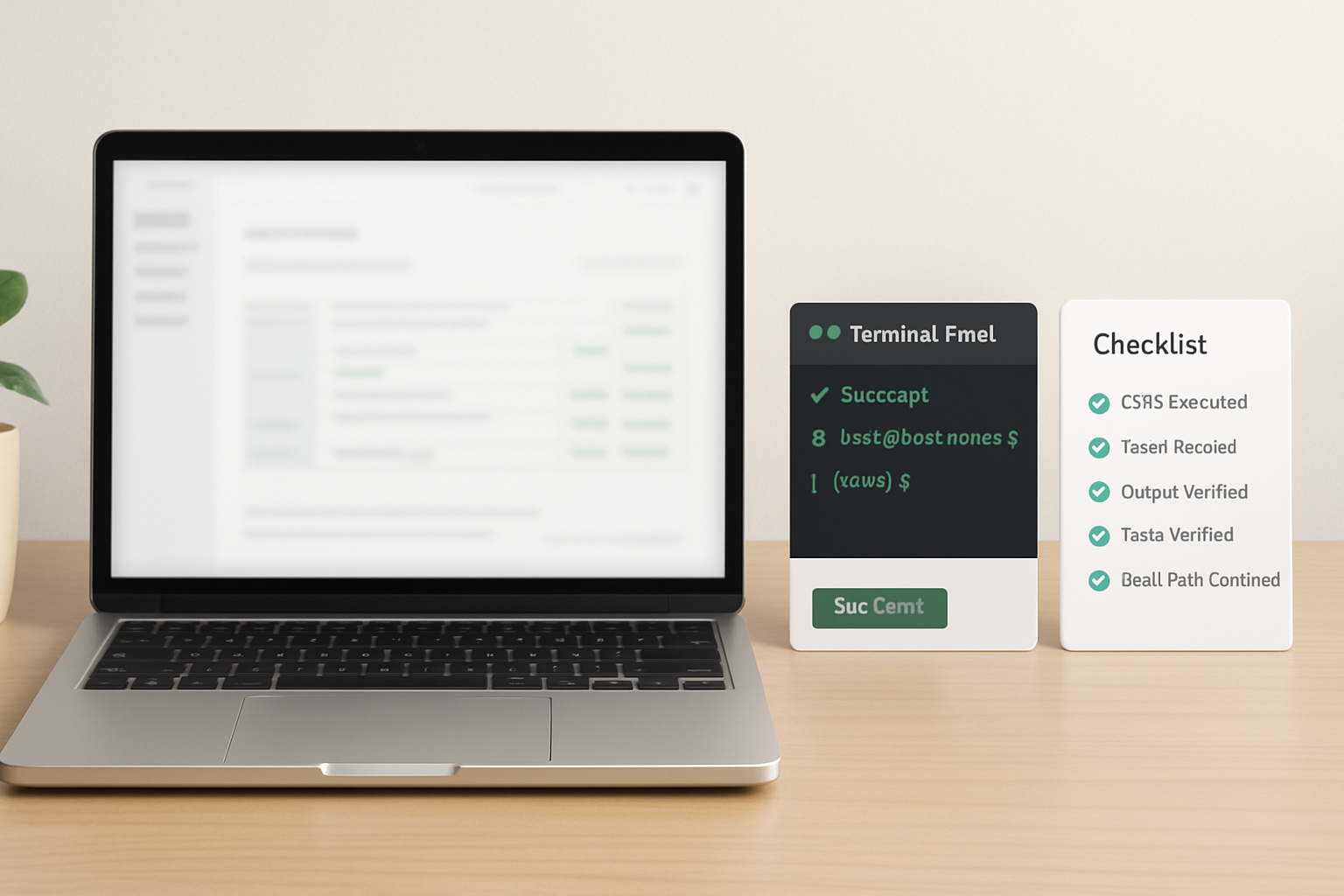
The reason this failure cascades is that workspace trust is checked before shell execution, not during it. So when a developer opens a project, runs a command, and gets silence, the failure point is not visible in the terminal output — it happened upstream, before the shell ever received the instruction. Every subsequent troubleshooting step that targets the shell, the path, or the environment is operating on a layer that was never the problem, burning time on diagnostics that return clean results because nothing in that layer is actually broken.
The real cost here is not the time to apply the fix — adding a folder to trusted workspaces takes about thirty seconds. The cost is the time spent diagnosing the wrong layer before arriving at the right one. A workspace trust check takes ten seconds and should be the first step any time a Cursor terminal command fails in one project but not another. Run it before anything else.
If you want the full Cursor environment configuration checklist — covering shell path verification, environment variable inheritance, direnv setup, and the trust settings audit — get the setup notes from the list below.
Get the Cursor Terminal Fix Checklist
The full setup notes — workspace trust paths, shell profile verification steps, and environment inheritance checks — are available to list subscribers. Join to get the checklist and future workflow breakdowns.
Check workspace trust before the shell. If the project folder is not in the trusted list, nothing downstream will behave correctly — and no amount of shell path debugging will change that.