
The n8n webhook URL was live. The WordPress post was published. The workflow sat there and received nothing — no error, no payload, no indication that anything had even fired. The trigger output bubble stayed empty on every test run.
The instinct in that moment is to blame n8n. Wrong webhook URL, maybe. Wrong HTTP method. Wrong node configuration. So you rebuild the webhook node, re-copy the URL, test again. Still nothing. The workflow runs fine when you manually trigger it with test data. The problem is upstream, and WordPress is not telling you that.
Here is what actually breaks this connection, in the order it matters.
Why WordPress Fails Silently on Webhook Delivery
WordPress does not throw a visible error when a REST API request fails to reach an external endpoint. If the permalink structure is wrong, the REST API routes simply do not exist — they return a 404 or fall back to a malformed response, and the payload never leaves WordPress cleanly. If authentication is missing, the request either bounces with a 401 or gets silently filtered depending on the endpoint configuration. From inside WordPress, both failures look the same: nothing happened.
The most common version of this failure starts with a fresh WordPress install where the permalink structure is still set to Plain. Under Settings → Permalinks, the Plain setting uses query string URLs like ?p=123 instead of clean path-based URLs. WordPress REST API endpoints rely on path-based routing — specifically the /wp-json/ prefix. When the rewrite rules are not active, /wp-json/wp/v2/posts returns a 404, and any attempt to register or call a webhook endpoint against that base URL fails before the payload is constructed.
Change the permalink structure to Post name under Settings → Permalinks → Post name, save, and the REST API routes activate. That single setting change resolves roughly half of these silent failures before touching anything in n8n.
To verify the REST API is actually available, open a browser and navigate to https://yoursite.com/wp-json/wp/v2/posts. If you see a JSON array of posts, the API is live. If you see a 404 or an HTML error page, the permalink structure is still wrong or a security plugin is blocking the route.
Authentication Is the Second Layer That Breaks Everything
Once the REST API is reachable, the next failure point is authentication. The WordPress REST API restricts write operations and some read operations to authenticated requests. An n8n HTTP Request node sending a POST to a WordPress endpoint without credentials will receive a 401 Unauthorized or a rest_forbidden JSON error — which n8n will log as a failed execution, but only if the workflow is actually running. If the trigger side is misconfigured, you never even see the 401.
The correct authentication method for this setup is WordPress Application Passwords, available natively since WordPress 5.6. To generate one, navigate to Users → Your Profile → Application Passwords, enter a name for the application (use something like “n8n-webhook”), and click Add New Application Password. WordPress generates a 24-character password that is only shown once. Copy it immediately.
In n8n, open the HTTP Request node that is sending data to WordPress, go to the Authentication section, select Generic Credential Type, choose Basic Auth, and enter your WordPress username and the application password (with spaces removed) as the password field. The header this generates looks like:
Authorization: Basic base64(username:application_password)Without this header on every outbound request from n8n to WordPress, authenticated endpoints will reject the payload. The webhook will appear to be broken on the n8n side when the actual rejection is happening at the WordPress authentication layer.
The Payload Format Mismatch Nobody Checks First
Even with the REST API live and authentication working, the webhook can still fail to deliver usable data because the JSON structure WordPress sends does not match what the n8n workflow expects to receive.
A WordPress REST API response for a post update includes deeply nested objects — _links, content.rendered, excerpt.rendered, guid.rendered — alongside flat fields like id, status, and date. If the n8n workflow downstream is referencing {{$json.content}} expecting a plain string, it will receive an object and either throw a type error or pass an [object Object] string into the next node.
Before the fix, a typical payload reference in n8n looked like this in the expression field:
{{$json.content}} directly, expecting the post body as a string. The downstream node received [object Object] and the workflow produced no output. No error was thrown — the workflow completed successfully with broken data.
{{$json.content.rendered}}, which targets the HTML string nested inside the content object. The downstream node received the actual post content and the workflow executed correctly.
To inspect the exact payload structure your WordPress instance sends, use the n8n webhook node in Test mode: activate the webhook listener, trigger a real WordPress event, and open the Output tab on the webhook node. Every field path is visible there. Do not guess the structure from documentation — WordPress field shapes vary depending on plugins, custom post types, and REST API extensions. Read the actual output bubble before writing any downstream expression.
Registering the Callback and Configuring Content-Type
WordPress does not automatically send data to external URLs. For the n8n webhook to receive WordPress events, something must trigger the outbound HTTP request — either a plugin like WP Webhooks, a custom function in functions.php using wp_remote_post(), or a REST API call from an external trigger that POSTs to WordPress and then chains to n8n.
If using wp_remote_post() to fire the n8n webhook on a WordPress action hook, the request must include the correct Content-Type header. The n8n webhook node expects application/json by default. A missing or incorrect content-type causes n8n to receive the payload as raw text instead of a parsed JSON object, and every expression referencing $json fields will return undefined.
A minimal working implementation in functions.php looks like this:
add_action('save_post', function($post_id, $post) {
    if (wp_is_post_revision($post_id)) return;

    $webhook_url = 'https://your-n8n-instance.com/webhook/your-webhook-id';

    wp_remote_post($webhook_url, [
        'method'  => 'POST',
        'headers' => [
            'Content-Type' => 'application/json',
        ],
        'body'    => wp_json_encode([
            'post_id'     => $post_id,
            'post_title'  => $post->post_title,
            'post_status' => $post->post_status,
            'post_content' => $post->post_content,
        ]),
        'timeout' => 15,
    ]);
}, 10, 2);
This fires on every save_post event, including autosaves, so the wp_is_post_revision check prevents the webhook from firing dozens of times per session. Adjust the action hook to publish_post if you only want the trigger on first publication.
Once this is in place, publish or update a post in WordPress, then check the n8n webhook node’s execution log under Executions → All Executions. A successful delivery shows a green execution with the full JSON payload visible in the trigger node’s output panel.
Why This Actually Makes Money
Every hour spent manually moving post data from WordPress into a CRM, email sequence, or content pipeline is a recurring labor cost that compounds across every content update. The silent failure described here is not a one-time setup problem — it is a permanent gap between content production and downstream automation that someone is quietly closing by hand, every week, without it appearing on any time-tracking report.
CORS Settings and Security Plugin Interference
CORS becomes relevant when the request originates from a browser-based context, but for server-to-server webhook communication between WordPress and n8n, CORS headers are not the primary concern. What does interfere at this layer are security plugins.
Plugins like Wordfence, iThemes Security, and All In One WP Security include REST API blocking features. Wordfence, for example, has a setting under Wordfence → Firewall → Brute Force Protection that can block REST API requests from unfamiliar IP ranges. iThemes Security has a dedicated WordPress Tweaks → REST API setting that can restrict access to authenticated users only or block it entirely.
If the permalink fix and authentication are both correct and the webhook still does not fire, check these paths in sequence: Wordfence → All Options → REST API, iThemes Security → Settings → WordPress Tweaks → REST API Access, and any firewall rule blocking outbound requests from WordPress to external URLs. Some managed hosting environments also block outbound HTTP requests from PHP by default — check with the host if wp_remote_post() returns a cURL error rather than an HTTP status code.
Where This Setup Breaks
This configuration works reliably for standard WordPress post types with a self-hosted n8n instance that has a stable, publicly reachable webhook URL. It starts breaking under a few specific conditions.
If the n8n instance is running locally on localhost or behind a VPN, WordPress cannot reach the webhook URL. The wp_remote_post() call will time out after the configured timeout value (15 seconds in the example above), and the post save operation will block or slow down noticeably on every publish action. For local development, use a tool like ngrok to expose the local n8n port to a public URL, then update the webhook URL in functions.php for testing.
For high-frequency publishing environments — content operations pushing dozens of posts per hour — the synchronous nature of wp_remote_post() inside a save_post hook creates latency on every save. Each outbound HTTP call adds roughly 1-3 seconds to the save operation depending on n8n response time. At scale, this becomes a noticeable UX problem for editors. The fix is to push the webhook call to a background process using a WordPress cron job or an async queue, but that adds implementation complexity that is not worth it for low-volume setups.
Application Passwords also do not work on WordPress instances where SSL is not properly configured. The authentication header transmits credentials in base64, which is only secure over HTTPS. On a plain HTTP site, the credentials are exposed in transit and some WordPress security configurations will actively reject Application Password authentication without HTTPS.
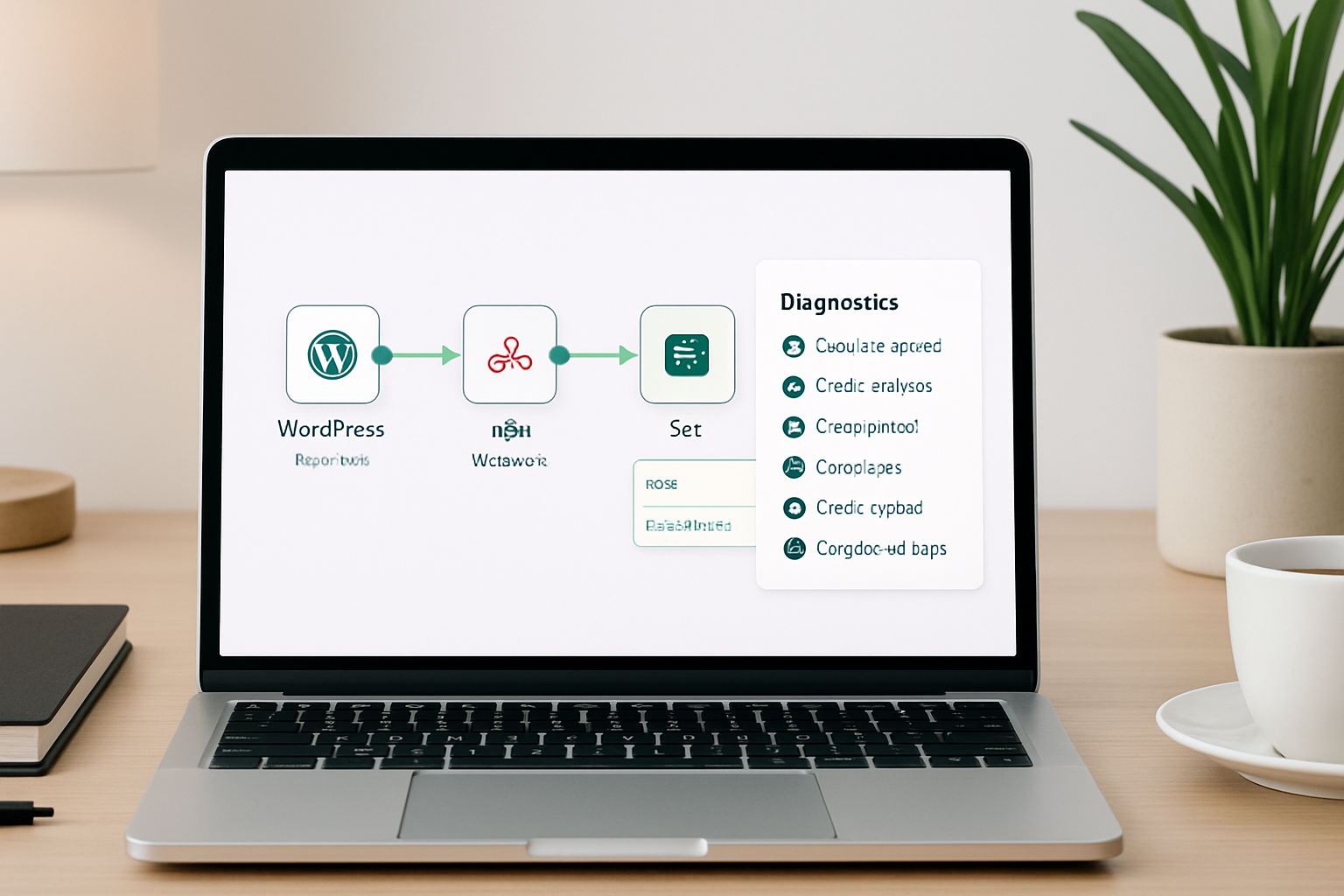
Diagnostic Checklist Before Assuming n8n Is Broken
- Navigate to
Settings → Permalinksin WordPress and confirm the structure is set to Post name or any option other than Plain. Save the settings even if they appear correct — this regenerates the rewrite rules. - Open
https://yoursite.com/wp-json/wp/v2/postsin a browser. Confirm it returns a JSON array, not a 404 or HTML error page. If it returns an error, the REST API is not accessible and no webhook will function until this is resolved. - In WordPress, go to Users → Your Profile → Application Passwords and generate a new password specifically for n8n. Confirm the username and password are entered correctly in the n8n HTTP Request node under Basic Auth credentials.
- In the
wp_remote_post()call or the WP Webhooks plugin configuration, confirm theContent-Typeheader is set toapplication/json. Open the n8n webhook node in test mode, trigger a WordPress publish event, and check the raw output in the trigger node’s output panel before writing any downstream expressions. - Check the active security plugins for REST API restriction settings. Disable them temporarily and retest the webhook delivery. If the webhook fires after disabling, the security plugin is the blocker — configure an allowlist for the n8n server IP or the specific REST API route rather than leaving the plugin disabled.
- In n8n, go to Executions → All Executions and filter by the webhook workflow. Confirm whether executions are appearing at all. If no executions appear, the payload is not reaching n8n and the problem is on the WordPress side. If executions appear but show errors, the payload arrived but the downstream node configuration is wrong — open the failed execution and read the exact error message in the output panel.
If executions are appearing in n8n but the payload fields are returning undefined, the fix is almost always a path mismatch between what WordPress sends and what the n8n expression references. Open the trigger node output, expand the full JSON tree, and copy the exact key path — do not reconstruct it from memory or documentation.
Get the exact setup notes and webhook configuration template sent to your inbox — join the list below.
Get the WordPress-to-n8n Webhook Setup Notes
The exact functions.php template, authentication config, and payload path reference — formatted for direct use. Join the list and get the full setup breakdown.
Final Verdict
If executions are not appearing at all in n8n, stop debugging the webhook node and check Settings → Permalinks first — the REST API routes do not exist without it. If executions appear but fields are empty, open the trigger output bubble and read the actual payload before writing a single expression.