
The code appeared in the chat panel, correct down to the variable names. The file sat there, unchanged. Clicking Apply again produced the same result — the suggestion hovered in the interface like it was waiting for something, and whatever that something was, it wasn’t happening automatically.
This is not a bug in Cursor’s AI. It is a handoff failure between the generation layer and the apply layer, and the two layers do not talk to each other unless a specific set of conditions is met. When one condition breaks, the change queues silently and the file never updates. The frustrating part is that everything looks like it worked.
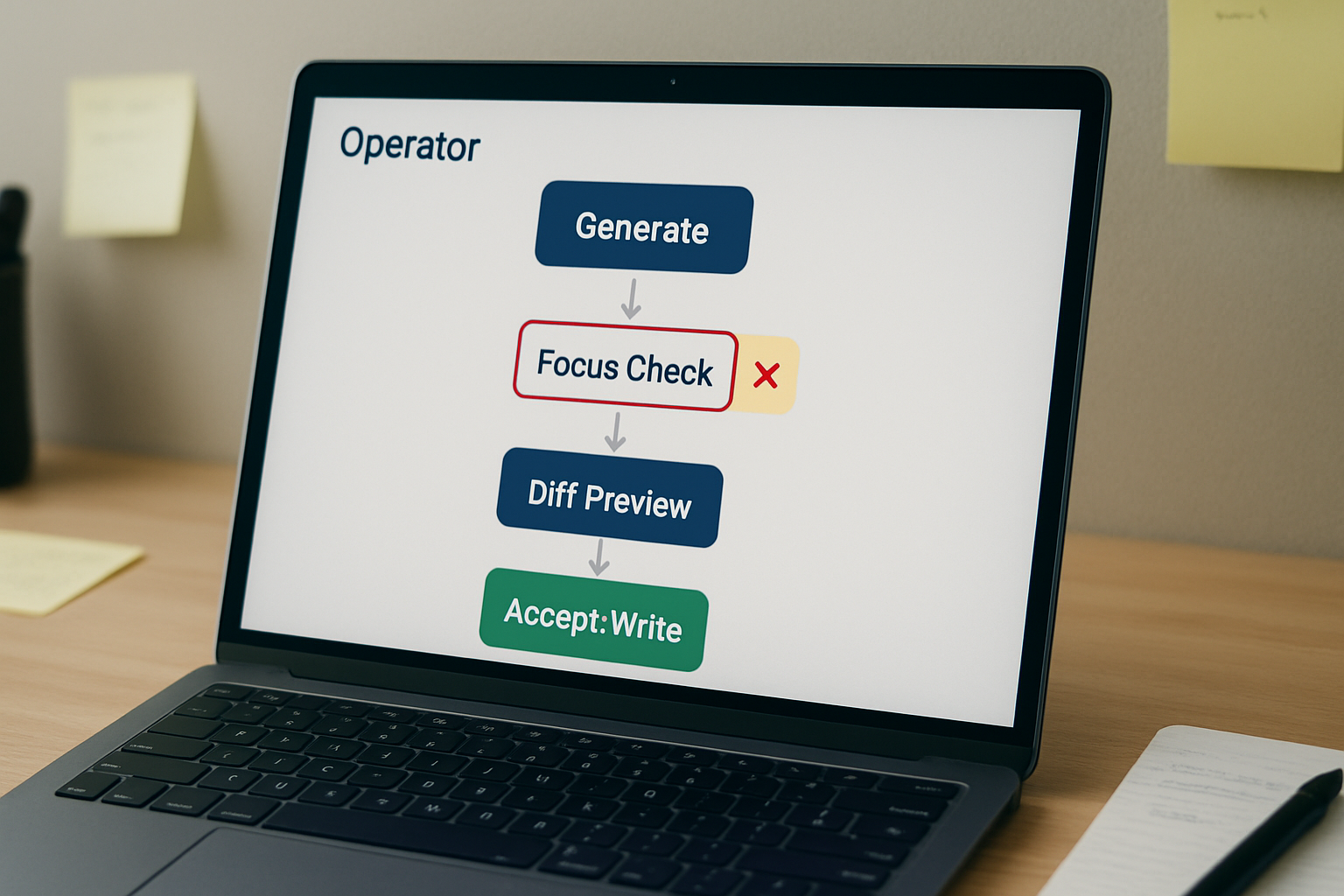
What’s Actually Happening When Apply Doesn’t Apply
Cursor operates with a separation between where code is generated and where it gets written. The chat panel — whether you’re in Composer mode or the standard chat sidebar — produces a suggestion that targets a file. But targeting a file and editing a file are two different operations. The apply action requires an active editor context: the correct file must be open, focused, and in a state that accepts writes.
When the file isn’t in focus at the moment you click Apply, Cursor either queues the change without executing it, or applies it to whichever file is currently active — which may not be the file you intended. In some cases the diff preview appears to show the change accepted, but the underlying file on disk hasn’t moved. The editor’s in-memory state and the saved state diverge, and the next time you open the file, it reverts.
The chain failure looks like this: AI generates correct output → you click Apply → focus is on the wrong pane → change queues or misroutes → file stays at previous state → you assume the AI failed. The AI didn’t fail. The context handoff did.
The Wrong Diagnosis That Wastes the Most Time
The default assumption when code doesn’t land in the file is that something is wrong with the model output, the prompt, or Cursor’s AI backend. So the usual response is to regenerate — sometimes multiple times — which compounds the problem because each attempt adds another unapplied suggestion to the queue without clearing the previous ones.
The actual failure point is almost always one of three places: the file isn’t in active editor focus, the apply mode is in review state waiting for explicit confirmation, or the file is large enough that Cursor’s apply model is timing out silently. None of these are AI failures. All of them are solvable in under two minutes once you know where to look.
Before regenerating anything, check the diff view. If the diff view shows changes in amber or red/green highlight but the file hasn’t updated, the change is queued and waiting — not lost. The Accept button in that state is the confirmation gate, and it requires a deliberate click, not just Apply.
File Permissions and Editor Focus — The First Verification Pass
Run through this checklist before touching the Cursor interface again. Each item maps to a specific failure mode that produces the “code in chat, nothing in file” symptom.
- Click directly into the target file’s editor pane so it has active focus — not just the file tab, but the actual text area. Cursor uses the focused pane as the write target, and a tab that’s open but not focused is treated as inactive context.
- Check whether the file is read-only at the OS level. On macOS, right-click the file in Finder → Get Info → confirm “Locked” is unchecked. On Windows, right-click → Properties → confirm “Read-only” is not checked. A locked file will accept the diff preview visually but reject the write silently.
- Confirm the file is not open in another editor simultaneously. VS Code, Vim, or any other process holding a write lock will cause Cursor’s apply to fail without an explicit error message in most cases.
- Check the file size. Cursor’s apply model degrades significantly on files above roughly 500 lines, and on very large files — reportedly above 10,000 lines — it cancels the apply immediately with no useful error. If your file is large, split the relevant section into a temporary file, apply the change there, then merge back.
- Verify you are editing a file that exists on disk, not an unsaved buffer. Cursor’s apply writes to the disk path, not to an in-memory buffer. If the file has never been saved, it has no path to write to.
Checking Cursor’s Apply Mode Settings
Cursor has two distinct interaction modes that handle apply differently, and which one is active determines what “Apply” actually does when you click it.
In the standard chat sidebar, the Apply button sends the diff to the file but holds it in a review state — the change is staged, not committed. You will see the diff overlay on the file with Accept and Reject options. If you close the file or switch focus before clicking Accept, the change is discarded. This is the most common source of “I applied it but it reverted” reports.
In Composer mode (Cmd+I on macOS, Ctrl+I on Windows), the behavior can differ depending on your Agent settings. With Agent mode enabled, Cursor may apply changes directly without a review gate — or it may still require confirmation depending on the version and your settings. To check: open Cursor Settings via Cmd+, → search “Agent” → look for the “Auto-apply edits” toggle. If it’s off, every suggested edit requires manual Accept. If it’s on and changes still aren’t landing, the issue is upstream in the focus or permissions chain.
For Cursor 0.43 and later, if the Apply button appears to do nothing, the fastest recovery path is: Ctrl+Shift+P (or Cmd+Shift+P) → type “Apply Changes” → run the command directly. This bypasses the button’s click handler and routes through the command palette, which has a separate execution path and resolves most cases where the button itself is stuck.
Before and After: What the Broken Flow Looks Like vs. What Works
The timestamp check is worth building into your habit. If the file’s modified time didn’t change after you accepted, the write didn’t happen regardless of what the editor shows in memory.
Troubleshooting by Symptom
These are the four most common symptom patterns and what each one actually points to, based on how the apply chain breaks at different nodes.
Code appears correctly in chat but the file shows no diff overlay: The file was not in active focus when Apply was clicked. Cursor had no confirmed write target. Fix: click into the file editor pane, then re-click Apply from the chat panel. The diff overlay should appear within one to two seconds.
Diff overlay appears, changes look correct, but after Accept the file reverts on next open: The file was saved in a conflicting state — either another process overwrote it, or Cursor wrote to a cached version that wasn’t flushed to disk. Fix: after accepting, use Cmd+S (or Ctrl+S) immediately and verify the OS timestamp updates. If auto-save is enabled in Cursor settings, disable it temporarily to rule out race conditions between the apply write and the auto-save event.
Apply button is visible and clickable but nothing happens — no diff, no change, no error: This is the stuck button state reported in Cursor 0.43+. Fix: Cmd+Shift+P → “Apply Changes”. If that also fails, close and reopen the file, then try again. If extensions are installed, disable them one at a time via Extensions → Disable All, then re-enable to isolate a conflicting extension that may be intercepting the write event.
Changes apply to the wrong file: Cursor wrote to whichever file had focus, not the intended target. This happens when the chat references a file by name but a different file is active in the editor. Fix: before generating the suggestion, open the target file and click into it. The diff header in the preview will show the file path — verify it matches your target before accepting.
Where This Breaks Regardless of What You Do
There are conditions where the standard apply workflow will not work and the workaround is structural, not a settings fix.
Files above roughly 500 lines push against Cursor’s apply model limits. The model uses text-position matching to place edits, and on large files that matching becomes unreliable enough that Cursor cancels the operation. The red X cancellation in large files is not a fluke — it is the apply model hitting its working boundary. The only reliable fix here is to split the file: extract the relevant function or section into a separate file under 300 lines, apply the change there, then reintegrate. Attempting to apply to large files repeatedly will not eventually succeed.
Version mismatches between Cursor and its apply model can also produce silent failures that look identical to the focus issue. If you have been on the same Cursor version for an extended period, check for updates via Help → Check for Updates. Apply model improvements ship frequently, and some failure modes documented in earlier versions were patched in subsequent releases.
Finally, the apply workflow does not help if the suggestion itself is structurally incomplete — for example, if the AI generated a partial function that references variables not in scope. In that case the change may apply correctly to the file but break compilation. The apply mechanism worked; the output contract was the problem.
Verification Checklist Before Calling It Fixed
- Open the target file and click directly into the editor text area to confirm active focus — the cursor should be blinking in the file, not in the chat panel.
- Check the diff preview header to confirm it shows the correct filename and target line range before clicking Accept.
- After accepting, press
Cmd+S/Ctrl+Sand check the file’s modified timestamp in the file system to confirm the write landed on disk. - If using Composer mode, verify under Cursor Settings → Agent that “Auto-apply edits” is set to your intended state — on if you want direct writes, off if you want a review gate.
- If the Apply button is unresponsive, run the command via
Cmd+Shift+P→ “Apply Changes” and check whether any installed extensions are intercepting write events by disabling them temporarily via Extensions → Disable All. - If the file is large, check the line count. Above roughly 500 lines, split the file before attempting to apply changes — the apply model’s text-position matching degrades progressively above that threshold.
- After the full verification pass, open the file in a plain text editor outside Cursor to confirm the change exists on disk, independent of Cursor’s in-memory state.
Running through this sequence once adds roughly two minutes to any debugging session. Skipping it and regenerating instead typically costs much more, because each new suggestion adds to the queue without resolving the original context failure.

The Hidden Cost of Repeated Regeneration
The real ROI of fixing the apply chain correctly the first time is not just speed — it is that every regeneration attempt without a confirmed write target produces dead suggestions that accumulate in the Composer queue without being cleared. On a session with multiple files and multiple suggestions, this queue can grow to a state where Cursor’s apply model starts resolving conflicts between queued edits rather than writing cleanly to disk. That state is harder to unwind than the original one-click fix.
A broken apply flow that takes two minutes to diagnose correctly is roughly ten times faster to resolve than a session full of stacked regenerations, each one compounding the context drift. The apply mechanism requires explicit confirmation at every stage — that is a design choice, not a limitation.
Get the setup notes
If you’re working with Cursor’s Composer or Agent mode across multiple files, the apply chain has more failure points than a single-file session. Join the list and get the workflow breakdown covering multi-file apply sequences, Composer queue management, and the extension conflict checklist.
If the diff header shows the wrong filename, stop and click into the correct file before doing anything else. Everything else in this chain depends on that one state being correct.