
The workflow ran. The tool node returned a 401. The API key sitting in the Dify settings panel was completely valid — confirmed, active, copied correctly. And the call still failed every single time.
This is one of those failures that looks like a credentials problem but isn’t. The key is fine. The endpoint is reachable. Something in the handoff between Dify’s auth configuration and the external API’s expected header format is misaligned, and until you know exactly where to look, the error log tells you almost nothing useful.
Where the Chain Actually Breaks
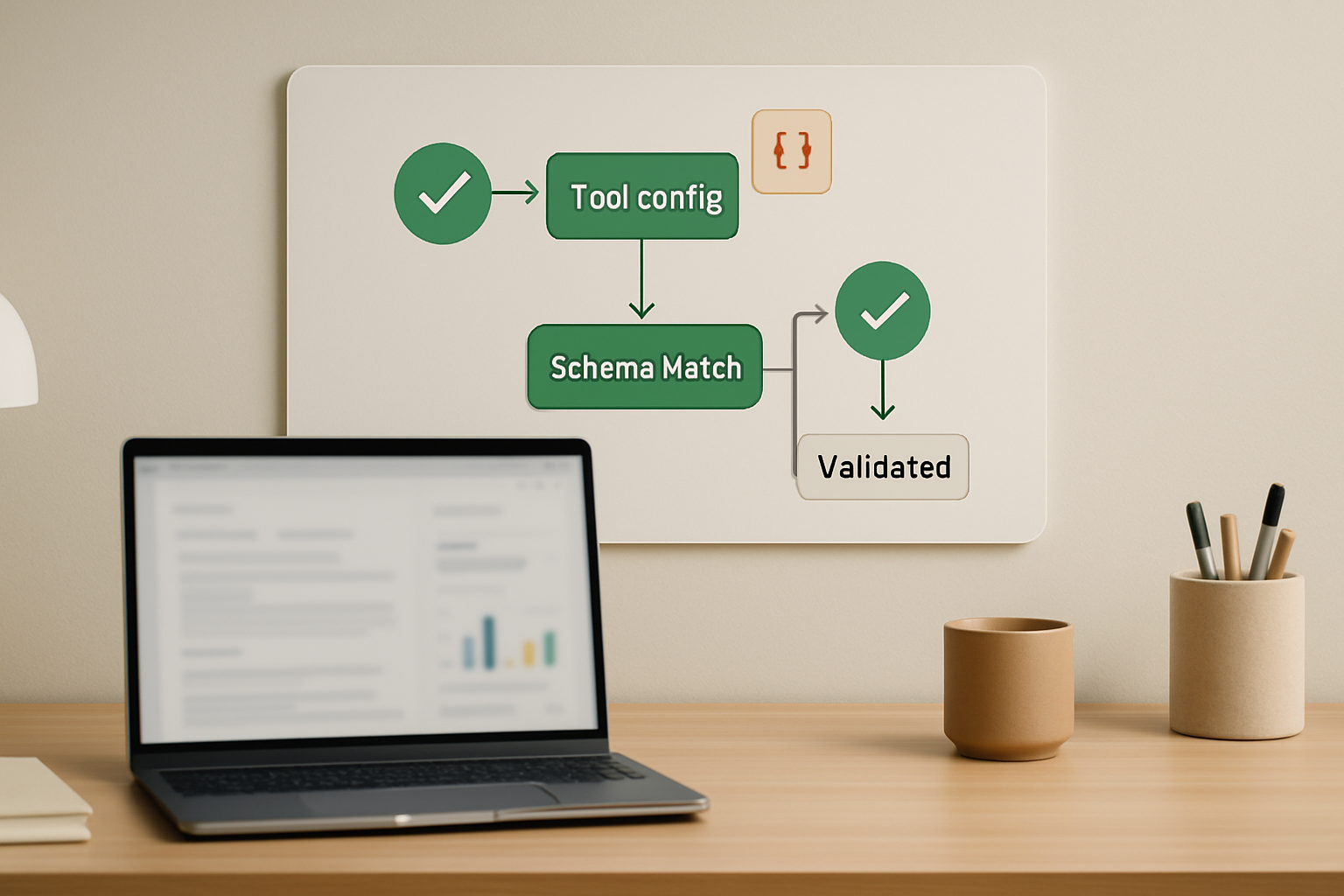
Dify external tool calls involve at least four handoff points before a response comes back: the endpoint URL format, the authentication method selected in the tool config, the request schema Dify sends, and the response schema the tool returns. A failure at any one of these points can produce the same surface-level error — 401, empty response, or silent timeout — which makes the first wrong assumption almost guaranteed.
The most common wrong assumption is that a 401 means the API key is wrong or expired. That assumption sends you into key rotation, re-copying credentials, and checking provider dashboards — none of which fixes the actual handoff issue. The key was never the problem. The header format carrying it was.
Dify’s tool configuration panel offers several authentication method options: API Key, Bearer Token, and Custom Header. These are not interchangeable. Selecting Bearer Token tells Dify to send the header as Authorization: Bearer <your_key>. But if the external API expects the key under a custom header name — X-API-Key being the most common — Dify will send a header the API never reads, and the API returns 401 because no recognized auth header arrived at all.
Switching from Bearer Token to Custom Header in the Dify tool config, then specifying the exact header name the API expects, resolves this immediately. The key doesn’t change. The endpoint doesn’t change. Only the header label changes — and the call succeeds.
Step-by-Step Debugging Checklist
Work through these in order. Most failures resolve at step two or three, so don’t skip ahead to schema validation before confirming the auth layer is correct.
- Open the external API’s documentation and find the exact authentication header it requires. Look for the literal header name —
Authorization,X-API-Key,api-key, or something provider-specific. Do not assume it matches Dify’s default. - In Dify, navigate to Tools → Custom Tools → [your tool] → Edit and locate the Authentication section. Confirm which method is selected: API Key, Bearer Token, or Custom Header. Cross-reference this against what the external API actually requires. If the API expects
X-API-Key, select Custom Header and typeX-API-Keyas the header name. - Before re-testing inside Dify, run the call directly with curl to confirm the API responds correctly when the header is set manually. Use this pattern:
curl -X POST https://api.example.com/v1/endpoint \
  -H "X-API-Key: your_actual_key" \
  -H "Content-Type: application/json" \
  -d '{"input": "test value"}'
If curl returns a valid response, the key and endpoint are confirmed working. If it still returns 401, the issue is with the key or the provider — not Dify. Only proceed to Dify configuration once curl passes.
- Verify the endpoint URL format inside Dify. The base URL must not include trailing slashes or path fragments that overlap with the operation path defined in the OpenAPI schema. Navigate to Tools → Custom Tools → [your tool] → Schema and check that the
servers.urlvalue and the operationpathcombine cleanly into the full endpoint URL without duplication. - Validate the request schema. Open the OpenAPI schema Dify is using for the tool and confirm that every parameter the workflow passes matches the schema’s defined field names, types, and required flags. A field named
user_queryin the workflow that the schema expects asquerywill produce a silent failure or an empty response, not a visible error. - Check the response schema. Navigate to Logs → [failed run] → Tool Output in Dify and inspect what the tool node actually received. If the response object structure doesn’t match what downstream nodes expect — for example, the tool returns
result.textbut the next node is mapped tooutput— the workflow continues with null values and no error is surfaced. - After each change, re-run the workflow with a minimal test input and check Logs → Run Detail → Tool Node for the raw request and response. Dify logs the full outgoing request headers and body at this level, which is the fastest way to confirm the auth header is now being sent correctly.
The Before/After State That Actually Matters
Authorization: Bearer <key>. The external API was configured to read X-API-Key only. The API saw no recognized auth header and returned 401. The Dify log showed the error but not the cause, so the debugging loop started at key rotation instead of header format.
X-API-Key. Same API key, same endpoint. First call after the change returned 200 with the expected response body. No other configuration touched.
The real ROI here is not just one fixed workflow — it is that the same misalignment pattern appears across every external tool integration where the API vendor chose a non-standard header convention, and recognizing it once means you stop spending time on key rotation that never would have worked.
Reading Dify Logs Without Guessing
Dify’s run logs contain more diagnostic signal than most people use. When a tool call fails, navigate to Logs → [workflow run] → Nodes → [tool node name]. The expanded view shows the full outgoing request — including headers — and the raw response body. If the outgoing request shows Authorization: Bearer when the API expects X-API-Key, that single line confirms the auth mismatch without any further investigation.
Two failure signals worth knowing: a 401 with an empty response body almost always means the auth header didn’t match. A 422 or 400 with a response body containing field names almost always means a request schema mismatch — the API received the call but rejected the payload structure. These two error shapes point to different sections of the config, so reading the response body before starting to debug saves roughly 20 minutes of working in the wrong direction.
Silent empty outputs — where the tool node completes without error but passes null downstream — usually mean a response schema mapping issue. The API responded correctly, but the field path Dify is reading from the response object doesn’t exist at that location. Check Tool Output in the log, find the actual field path in the response JSON, and update the downstream node mapping to match.
Schema Validation: Where Things Break Quietly
Authentication failures announce themselves with error codes. Schema mismatches often don’t. A workflow can complete every node, produce a final output, and still be pulling empty strings into downstream steps because one field name in the OpenAPI schema doesn’t match what the API actually returns.
The most reliable way to catch this before it becomes a production issue is to run a single test call through Dify, capture the raw tool output from the log, and compare every field name against the schema definition. Any field the downstream node references that isn’t present in the actual response object will silently resolve to null. When a customer-facing workflow is built on top of that null, the failure surfaces as a bad output rather than a visible error — which is significantly harder to trace back to its origin.
To validate the schema: open Tools → Custom Tools → [tool name] → Schema, paste the current OpenAPI definition into a JSON validator, and confirm the responses block matches the structure the API actually returns. If the API’s live response includes a nested object like data.choices[0].text but the schema only defines text at the top level, the mapping will fail silently on every run.
Where This Debugging Approach Breaks Down
This checklist handles the most common failure patterns, but there are cases it won’t resolve. If the external API is behind a corporate firewall or IP allowlist, curl from a local machine will pass while Dify’s cloud instance gets blocked — the tool call fails with a timeout or connection error regardless of auth and schema being correct. That requires adding Dify’s outbound IP range to the API provider’s allowlist, which is a network-layer fix outside the tool configuration entirely.
Dify versions prior to approximately v1.10.1 also have a known issue with workflow_as_tool calls where user context resolution fails for external or anonymous sessions, producing authentication errors that look like header mismatches but are actually session-state issues in the platform itself. If the tool call fails only when triggered externally but works in the Dify canvas, check the platform version and review whether a patch addressing PR #26495 has been applied.
Finally, this approach assumes the external API has consistent, documented behavior. APIs that return different response schemas based on plan tier, region, or query type will break the schema mapping on edge-case inputs even when the baseline configuration is correct. There’s no clean fix for that beyond adding a fallback path in the workflow that handles unexpected response shapes before they reach downstream nodes.
Execution Checklist Before Going Live
- Confirm the external API’s exact authentication header name by reading its official documentation, not by inferring from the error message or from what worked with a different API.
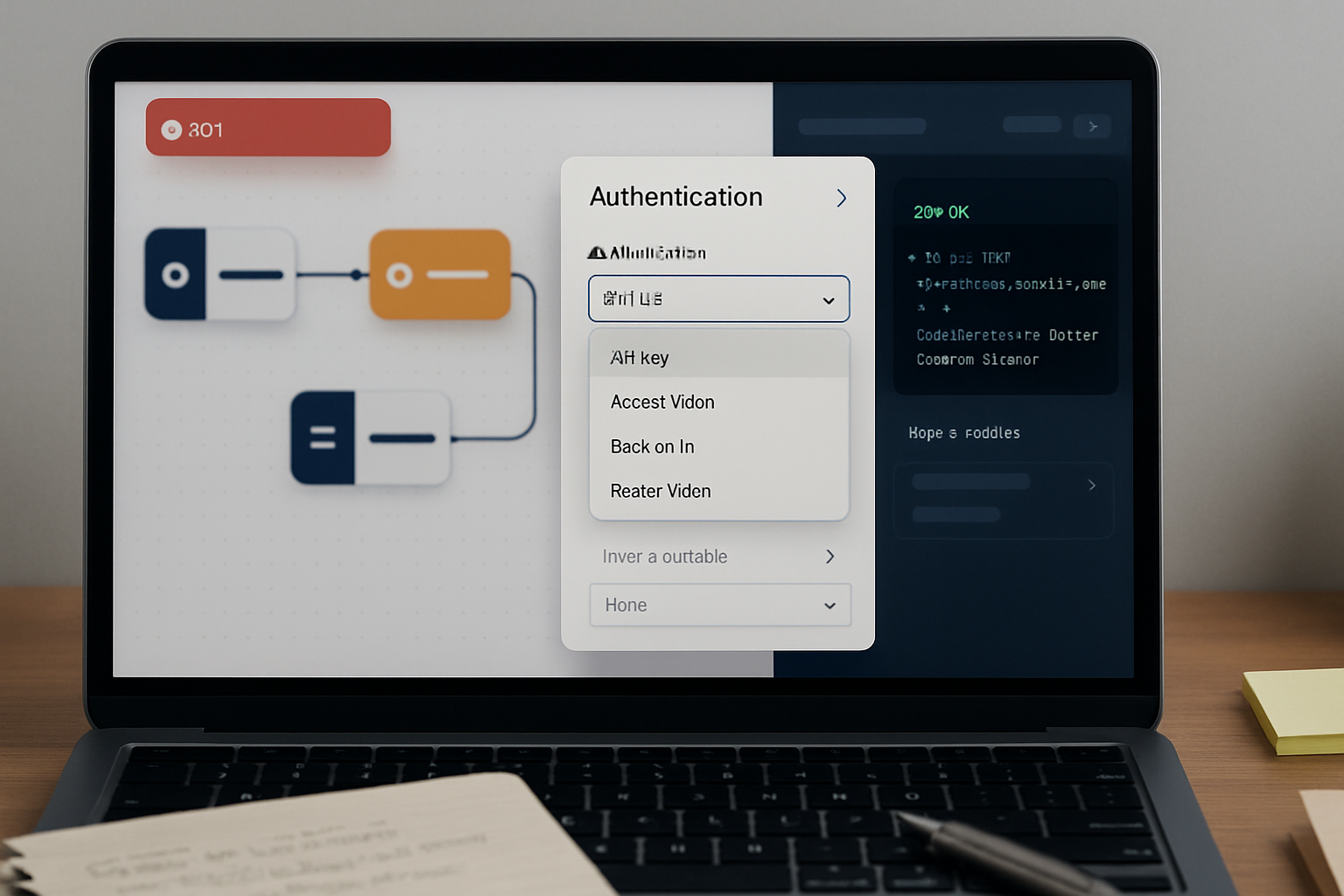
- In Dify, navigate to Tools → Custom Tools → [tool name] → Authentication and verify the selected method — API Key, Bearer Token, or Custom Header — matches the header format the API requires. If in doubt, select Custom Header and specify the header name explicitly.
- Run a curl test against the API endpoint with the exact header format before touching Dify configuration. A passing curl test means the credentials and endpoint are confirmed; a failing curl test means the issue is upstream of Dify and needs to be resolved at the provider level first.
- Open the tool’s OpenAPI schema in Dify under Tools → Custom Tools → [tool name] → Schema and verify the
servers.urlplus operation path combine into the correct full URL without duplication or missing segments. - After any configuration change, trigger a test run and open Logs → [run] → Nodes → [tool node] → Raw Output to confirm the response body contains the fields the downstream nodes are mapped to. If the field path doesn’t exist in the raw output, update the mapping before connecting production traffic.
- Add a fallback branch in the workflow for tool node failures — any path where
tool_outputis null or the status code is not 200 should route to a visible error state rather than silently passing empty data downstream.
Get the full tool integration setup notes — including a working OpenAPI schema template and auth configuration reference for common API header patterns — sent directly to your inbox. Join the list and get the workflow breakdown.
If the Dify log shows the outgoing request carrying Authorization: Bearer but the API documentation specifies X-API-Key, that single mismatch is the entire failure. Everything else in the config can be correct. Fix the header label and the call resolves.