
The Zap ran. The history showed green on the trigger. Then a grey “Step skipped” badge appeared on step three — and the record never reached the CRM. No error. No alert. Just silence, and a gap in the data that took two days to notice.
The first instinct is usually to blame the connection — API rate limit, token expiry, something unstable on the source app’s end. That diagnosis sends you down the wrong path for a while. You re-authenticate, you test the trigger manually, everything looks fine. The Zap runs again. It skips again.
The cause is quieter than a connection failure. One upstream step occasionally returned an empty value for a field that a downstream condition checked against — and Zapier, doing exactly what it was configured to do, treated that empty string as a failed condition and halted the branch.
What “Step Skipped” Actually Means in Zap History
Zapier distinguishes between three non-success states in task history: Error (something broke), Safely Halted (a search returned no results and the Zap stopped intentionally), and Skipped. A skipped step means a Filter or Path condition evaluated to false. The step did not malfunction — it passed judgment and decided not to continue.
To locate a skipped run, go to Zap History → filter by “Skipped”. Click into the run. Expand each step sequentially. The skipped step will show the condition it evaluated and the value it received. In most missing-field cases, the value column is blank — not “false”, not “null”, just empty. That empty string failed the condition check, and everything downstream never fired.
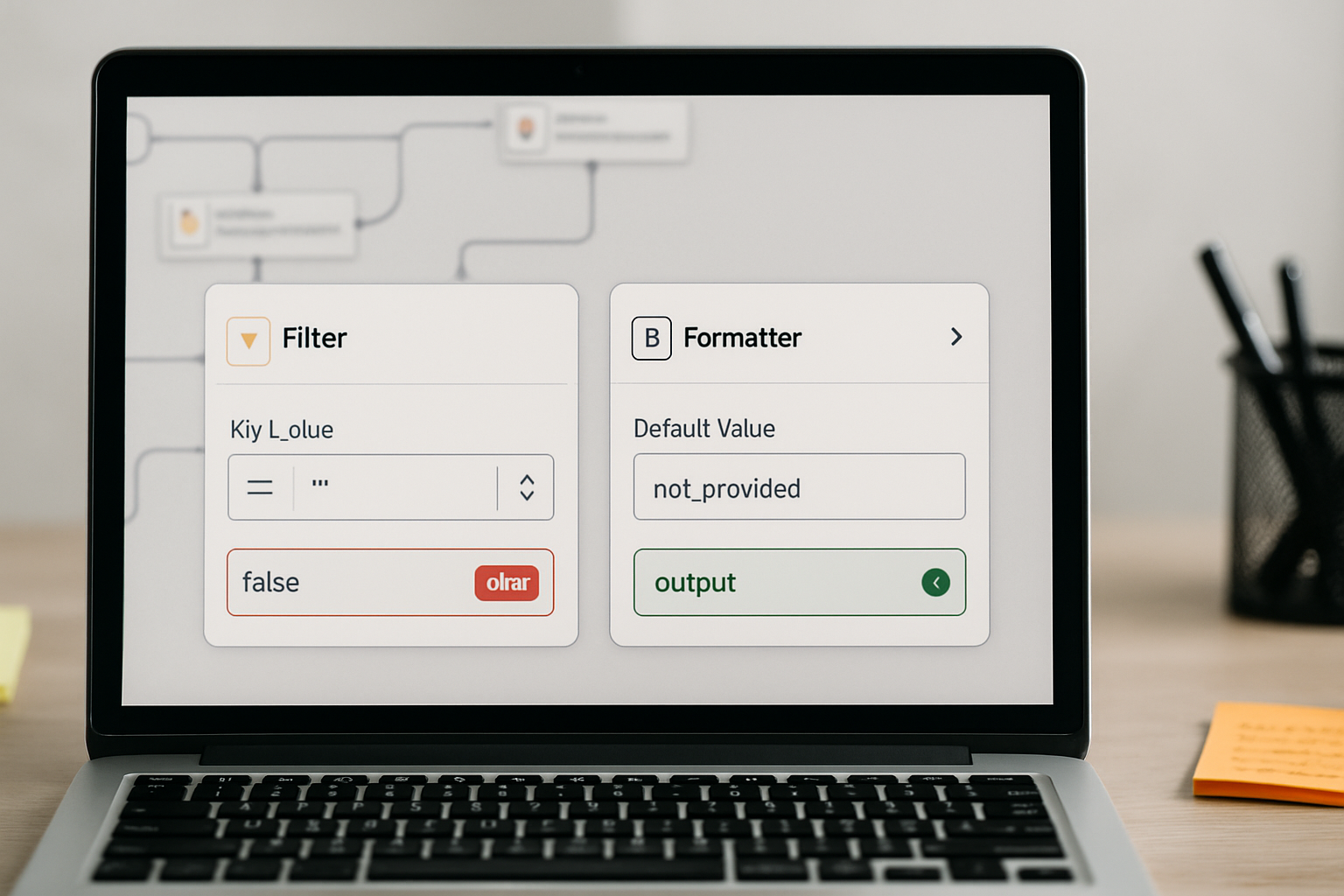
The screenshot you need to find first: the Filter step’s evaluation panel, showing the field name on the left and an empty value on the right, with the condition result reading false. That is the confirmation that the upstream step sent nothing for that field on this particular run.
Tracing Which Upstream Step Sent Empty Data
Once you confirm a Filter evaluated an empty field, the next question is where the empty value originated. Click back through the steps above the Filter in that same Zap history run. Expand each step’s output data. You are looking for the field that the Filter references — find the first step where it appears blank or absent from the output bubble entirely.
A field being absent from the output bubble is different from a field returning an empty string. If the field key does not appear at all, the source app did not include it in the payload for that record — common with optional CRM fields, conditional form questions, or webhook payloads from records created through an API rather than a UI form. If the field key appears but the value is empty, the record existed but the user left it blank.
Both states break the same way downstream. Zapier maps the field by key at setup time, and when the key either disappears or carries no value, the mapped variable resolves to empty — which a Filter condition reading “contains”, “is”, or “exists” will fail against.
Use this sequence to isolate the source:
- Open the failing Zap history run and expand every step from trigger to the skipped step.
- Locate the exact field name referenced in the Filter condition — visible in the Filter step’s “Only continue if…” panel.
- Search backward through each prior step’s output data for that field key.
- Mark the first step where the field value is empty or the key is missing — that is the injection point for the empty data.
- Check whether that step has optional output fields that only populate under certain trigger conditions (e.g., a form field that only appears when a specific option is selected, or a CRM field that is blank for leads created via import).
The Wrong Fix and Why It Fails
The typical first attempt is to tighten the Filter: change “field exists” to “field is not empty”, or add an additional condition. That does not solve the problem — it sharpens it. Now the Filter still evaluates to false on empty values, but with more conditions stacked, making the logic harder to debug on the next skip.
Another common attempt is to make the upstream step required at the source — adding form validation, making the CRM field mandatory, updating the intake process. That works for new records going forward but does nothing for the records already in the pipeline, and it does not protect the Zap when data enters from a second source that bypasses the validation layer (a CSV import, a different form, an API call from another tool).
Neither fix addresses the structural gap: the Zap has no instruction for what to do when a field it depends on arrives empty.
The Formatter Fix: Default Values Before the Filter
The correct intervention happens before the Filter step, not inside it. Add a Formatter by Zapier step between the data source step and the Filter. Use the Text → Default Value transform.
Path to add this step: inside the Zap editor, click the + button between the upstream step and the Filter → search Formatter by Zapier → select Text action → choose Default Value from the transform dropdown.
In the Formatter configuration:
- Input: map the field that occasionally arrives empty (e.g., the “Company Name” field from the CRM trigger).
- Default Value: set a meaningful placeholder that your Filter can handle — for example,
unknown,not_provided, ornonedepending on what your downstream logic needs to see.
Now update the Filter to reference the Formatter’s output field instead of the raw upstream field. When the source sends an empty value, the Formatter replaces it with the placeholder before the Filter ever evaluates it. The condition now resolves to a non-empty string, and the step continues.
The real ROI here is not that the Zap runs more often — it is that the failure mode is now explicit and handleable rather than silent. A record with not_provided in the company field reaches the CRM and can be flagged for follow-up. A silently skipped record reaches nothing and leaves no trace.
Adjusting Filter and Path Conditions to Handle Null Explicitly
If a Formatter step is not appropriate for the workflow — for example, the field is used in a Path router rather than a simple Filter, and you need different branches to handle present vs. absent values — then the condition logic itself needs to account for both states.
In a Filter step at Zap Editor → Filter step → “Only continue if…”, you can add multiple conditions connected by OR logic. Set the primary condition as your normal check (e.g., “Company Name contains [value]”), then add a second OR condition: “Company Name” → “Does not exist” or “Company Name” → “Is empty” — whichever matches how the absence appears in the output bubble for your specific source app.
For Path steps at Zap Editor → Paths → Edit Rules for Path A, apply the same OR expansion. Path A handles records where the field is populated; add a Path B or a catch-all path that matches when the field is empty, routing those records to a notification step or a holding action rather than letting them vanish.
The field mapping interface in the Zap editor marks some fields with an asterisk or a “required” label during step setup — but that label refers to whether Zapier needs the field to test the step during setup, not whether the field will always be present in live runs. Optional source fields will never carry a warning in the mapping UI. You have to check the source app’s data model directly to know which fields are conditionally populated.
Before and After: What the Zap History Looks Like
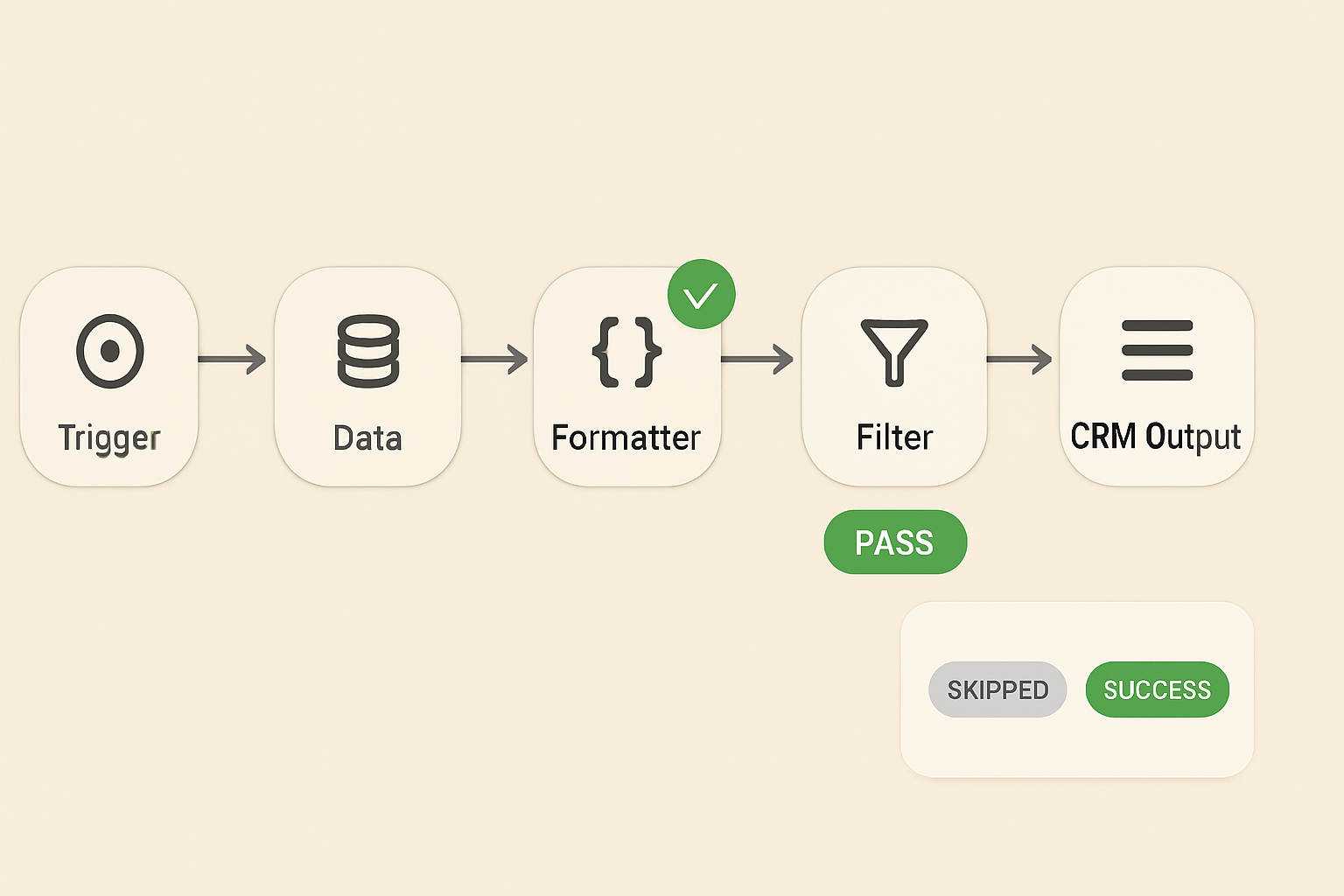
For a multi-step Zap processing roughly 50–100 records per day, the difference between these two states is not cosmetic — it is the difference between records silently dropping out of the pipeline a few times per week and every record being accounted for, even when the source data is incomplete.
Troubleshooting Checklist: Finding Which Step Sends Empty Data
Run through this before making any changes to the Zap structure:
- Open Zap History → filter to “Skipped” runs and click into the most recent skipped run to confirm the failure is field-related, not a safely halted search step.
- Expand the skipped step (Filter or Path) and copy the exact field name used in the condition — you need the key, not the display label.
- Work backward through each prior step’s output data in the same run, searching for that field key, and note the first step where it appears empty or absent.
- Check whether the source app has conditional fields — form fields that only appear under certain logic branches, CRM fields that populate only when a record is created via form (not import or API), or webhook payloads that omit keys entirely when the value is null rather than sending an empty string.
- Test the trigger step manually using a record you know has the field populated, then test again with a record that does not — compare the output bubbles to confirm the key disappears entirely vs. appearing with an empty value, since the Formatter configuration differs slightly between the two cases.
- Confirm there is no second trigger path or Zap feeding the same downstream tool that bypasses the field — if there is, the fix must be applied in both places.
Where This Fix Does Not Help
The Formatter Default Value approach handles the case where an optional field is empty or missing. It does not fix a structurally broken upstream step — if the data step itself errors out or returns no output at all, the Formatter receives nothing to transform and the run will error rather than skip.
It also does not help when the field is present and populated but contains unexpected formatting — a phone number field that sometimes returns +1-555-0100 and sometimes 5550100 will pass the empty check but break downstream formatting steps. That is a different class of problem requiring a Formatter Text transform for normalization, not a Default Value fallback.
And if the skip is happening because a Search step found no matching records — which Zapier calls “Safely Halted” rather than “Skipped” — the fix is different: enable the “Create record if not found” option inside the Search step, or add a subsequent step that handles the zero-result case explicitly. The Formatter Default Value approach does not intercept safely halted runs.
If you want the exact Formatter configuration and a reusable Filter condition template for handling null fields across multiple Zap types, get the setup notes — they cover the three most common empty-field patterns and the specific Zapier step configurations for each.
Get the Zap fix templates
Join the list and get the Formatter + Filter configuration notes for the three empty-field patterns that cause most skipped steps — including the Path router version for conditional branching.
Check the Zap History filter for “Skipped” runs before assuming the trigger app is at fault. The skip condition is almost always visible in the Filter step’s evaluation panel — the field name is there, the empty value is there, and the Formatter placement that fixes it is one step upstream from where the skip occurs.